Add your bank details so clients can pay you
Add a bank account in Settings → Business so your invoices show where to pay, and switch on the Czech QR payment code.
Your invoices show the bank account your client should pay into. Until you add one, invoices go out with no payment details at all. You can also add a QR payment code that your client scans with their banking app to pay the exact amount.
Before you start
This is on every plan. Have your account number and bank code, or your IBAN, to hand. For the QR code you need a Czech IBAN (it starts with CZ). Your internet banking shows it.
Add your account
- 1Open Settings from the left sidebar and choose Business.
- 2Scroll down to Bank Details and click Add bank account.
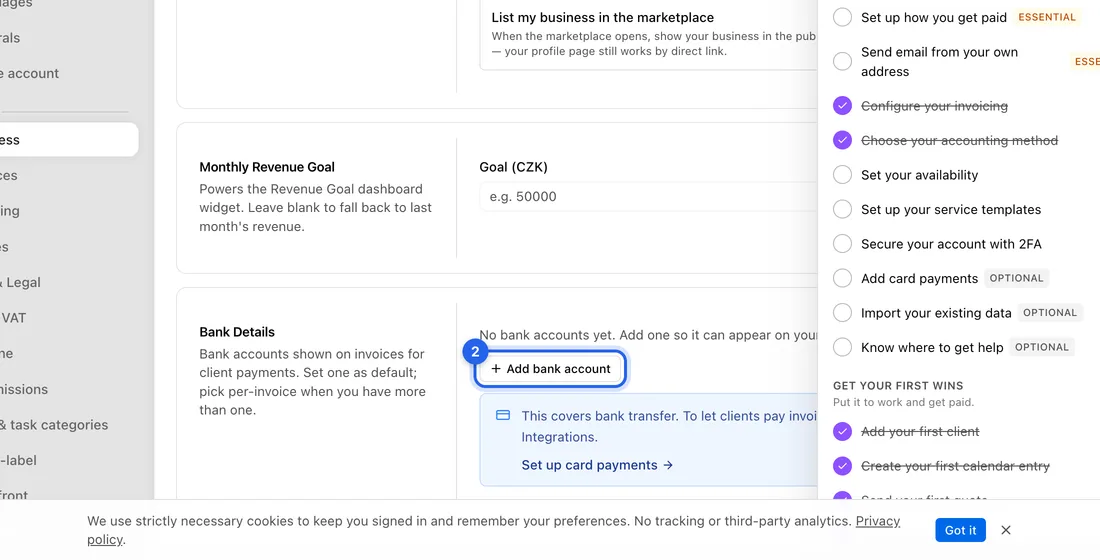
- 3In Account label, type a name you'll recognise, e.g. Main business account. Only you see it.
- 4In Account holder name (on invoices), type the name the account is in. This is printed on your invoices.
- 5Fill in Account number and Sort code (in the Czech app this is the bank code, the four digits after the slash, e.g. 0800), and/or IBAN.
- 6If your IBAN starts with CZ, turn on QR code on invoices. A sample code for a 1 000 Kč invoice appears so you can check it scans.
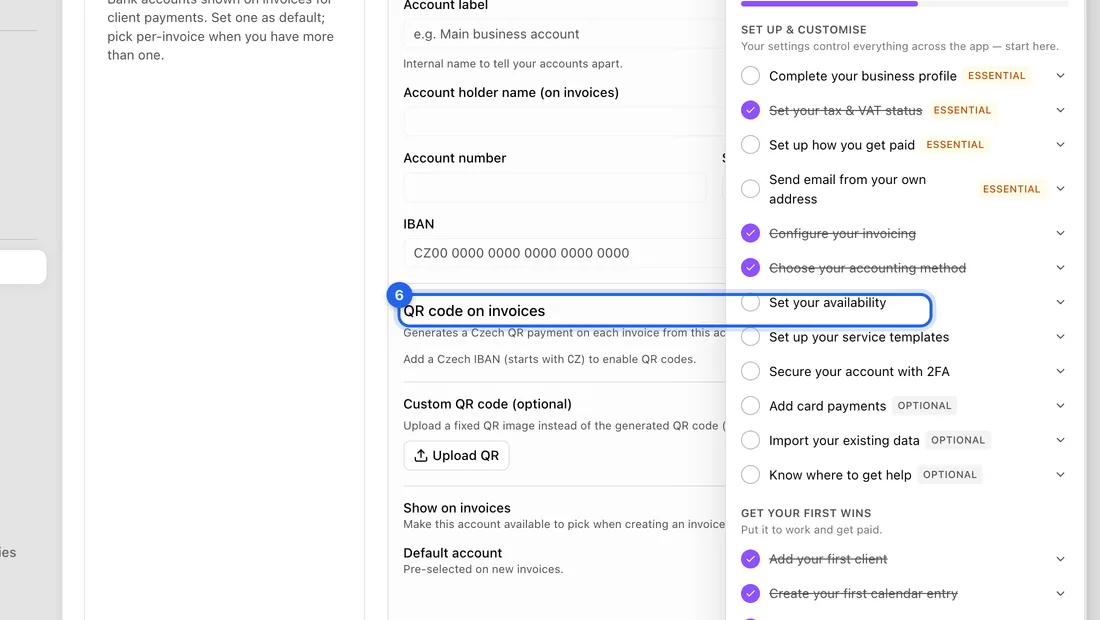
- 7Leave Show on invoices on. Your first account is set as the Default account automatically.
- 8Click Add account. You'll see “Bank account added” and the account appears in the list, marked Default.
This saves on its own. You don't need to click Save changes at the bottom of the page.
What happens next
Every new invoice uses your default account. You can see it in the Bank Details & QR Code section of the invoice form.
The QR code is printed on the invoice PDF and shown on the page your client opens from the invoice email. It appears only when all of these are true: QR code on invoices is on, the account has a Czech IBAN, and something is still owed on the invoice. Drafts, paid invoices and cancelled invoices never carry a QR code, so nobody can pay twice by accident.
The code already contains the amount due and the invoice's variable symbol. With a bank feed connected, a payment made this way is matched to the invoice on its own.
More than one account?
Add each one the same way (up to 8). Click the star next to an account to make it the default. When you have more than one, the invoice form shows a Bank account dropdown under Bank Details & QR Code, so you can pick a different one for that invoice.
To keep an account out of the dropdown without deleting it, click the pencil, turn off Show on invoices and click Save changes. It's then marked “Hidden on invoices”.
If something doesn't work
The QR code on invoices switch is greyed out, with “Add a Czech IBAN (starts with CZ) to enable QR codes.”: the IBAN is missing, isn't Czech, or has a typo. The app checks the IBAN's check digits, so a mistyped IBAN won't work. For a foreign account you can upload your own QR image under Custom QR code (optional) instead.
“Give the account a name”: Account label is empty.
“Add your bank details so this invoice can be paid” shows at the top of a new invoice: you have no account that's shown on invoices yet. Click Add bank details to jump straight to this section.
Your client sees no bank details or QR code at all: if you asked them to sign the invoice, the payment details stay hidden until they sign it. They appear once the invoice is signed.