Take a deposit with an advance invoice
Set a deposit on the quote. When the client accepts, a deposit (proforma) invoice is created. When the job's done, open it and click Issue final invoice: the final invoice deducts what the client already paid.
For a bigger job you can ask for money up front. It works in two documents: a deposit invoice (proforma) when the client accepts your quote, and a final invoice for the whole job when you're done, which subtracts the deposit they've paid.
Before you start
It starts from a quote. Quotes are on every plan; the Free plan allows 5 quotes a month.
Your client needs an email address so they can receive the quote and the invoices.
Set the deposit on the quote
- 1Click Quotes in the left sidebar, then New quote.
- 2Pick the client and add the lines for the whole job.
- 3Under Additional Details, find Deposit (optional) and choose % of total or Fixed amount.
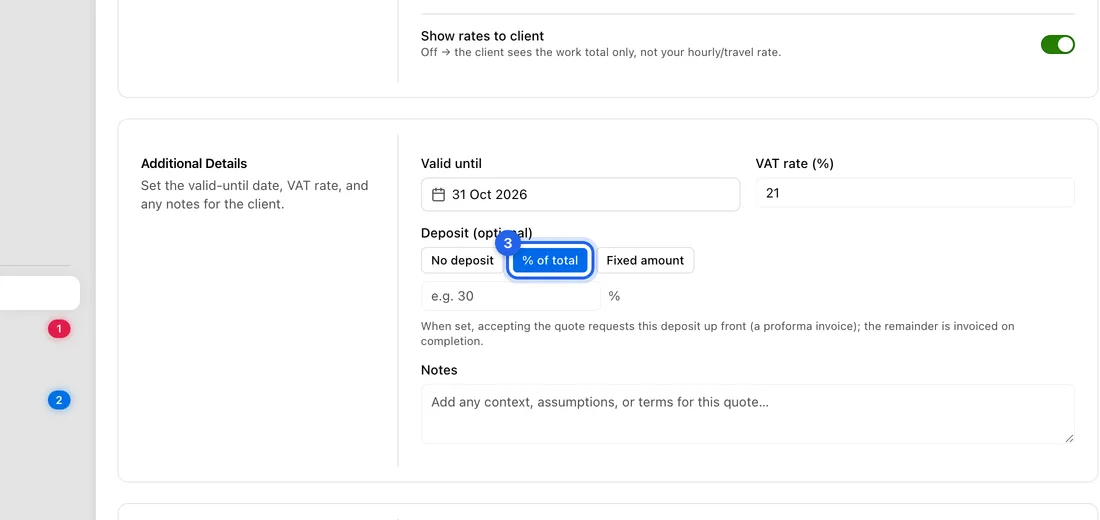
- 4Type the percentage or the amount. A line below shows what's due up front and what's left, e.g. “Deposit 10 000 Kč up front · balance 30 000 Kč on completion.”
- 5Click Save & send.
When the client accepts
- 1Your client opens the quote, ticks the box confirming a deposit invoice will be issued, and clicks Accept Quote.
- 2The app creates the deposit invoice in its own number series, due within 14 days at most. You get a notification and an email that the quote was accepted, with a link to the invoice.
- 3Open the deposit invoice (from the link, or from Invoices) and click Send to email it to your client.
Client accepted by phone? Open the quote and click Convert to invoice. With a deposit set, this creates the deposit invoice rather than a normal one.
When the work is done
- 1Open the deposit invoice from Invoices.
- 2Click Issue final invoice at the top. You'll see “Final invoice created” and the final invoice opens as a draft.
- 3Check it: it has all the quote's lines and a line Less advance invoiced for the deposit received.
- 4Click Send to email it to your client.
What happens next
For example: a quote for 40 000 Kč with a 25% deposit. The deposit invoice asks for 10 000 Kč. The client pays it. The final invoice lists the whole 40 000 Kč job, subtracts the 10 000 Kč, and asks for 30 000 Kč.
The final invoice subtracts what the client has actually paid on the deposit. If they haven't paid it yet, nothing is subtracted.
If you're a VAT payer, the app issues a “Tax document for payment received” automatically when the deposit is paid, so the VAT on it is declared in the right period.
Deposit invoices are never chased by payment reminders and carry no late interest. The final invoice is chased like any other.
If something doesn't work
There's no Issue final invoice button: it's only on the deposit invoice, not on a normal invoice. The quote needs a deposit set before it's accepted.
“Could not issue a final invoice for this proforma.”: this deposit invoice didn't come from a quote, so there's nothing to build the final invoice from.
The client can't click Accept Quote: they need to tick the deposit box above it first.
Need a deposit on an invoice without a quote? On the New Invoice form, use Require Deposit instead. The client then sees two pay buttons on the invoice, one for the deposit and one for the full amount.