Connect your bank and match payments to invoices
Connect Fio or Raiffeisenbank (or import a CSV from any bank), let payments with the right variable symbol match themselves, and match the rest by hand.
Once your bank account is connected, incoming payments that carry an invoice's variable symbol are matched to that invoice and mark it paid on their own. Everything else waits in the Unmatched tab for you to match with a couple of clicks.
There are three ways to get your bank's transactions in: Fio banka (an API token), Raiffeisenbank (payment-notification emails) and a CSV import that works with any bank.
Before you start
Available on Solo and up. How many banks you can connect by token depends on your plan: Solo 1, Solo Pro 2, Professional 3, Business 10. Only Fio connections count toward that number.
First add the bank account to the app, so the transactions have somewhere to land.
- 1Click Accounting in the left sidebar.
- 2In the accounting menu, under Transactions, click Bank.
- 3Click Add account.
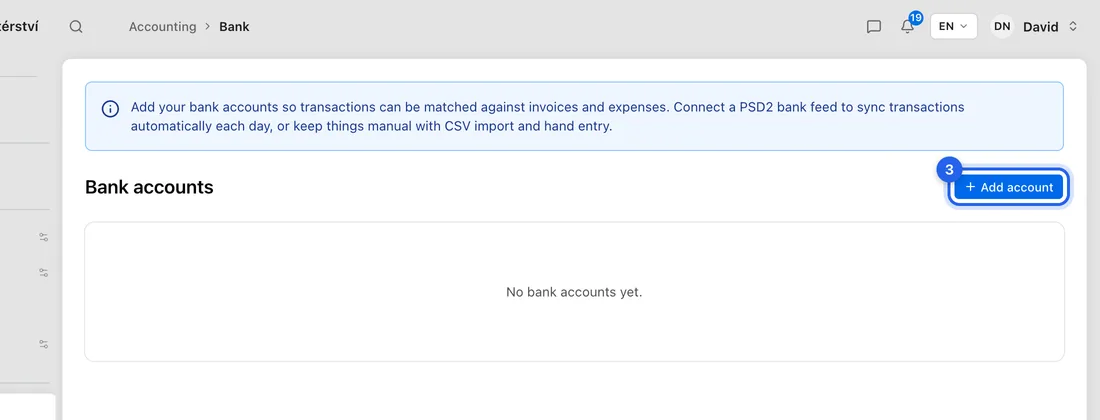
- 4Fill in Name (any name you'll recognise), then Bank name, IBAN or Account number, and Currency.
- 5Click Save. The account now appears as a card on the Bank accounts page.
Connect Fio banka (API token)
- 1In Fio internet banking, open Nastavení → API and generate a read-only token (it is 64 characters long). Copy it.
- 2In the app, go to Accounting → Bank and click the card of your Fio account.
- 3Click Connect bank feed.
- 4Open the Fio Banka (token) tab.
- 5Paste the token into the Token field.
- 6Click Connect Fio. You'll see "Fio connected" and land back on the account page.
The token gives read-only access to that one account, so treat it like a password. You can revoke it at any time on the same page in Fio. Transactions are fetched automatically several times a day. On Professional and Business you can also click Sync now on the account page to fetch straight away.
Connect Raiffeisenbank (notification emails)
- 1Go to Accounting → Bank and click the card of your Raiffeisenbank account.
- 2Click Connect bank feed. The Email notifications tab is already open.
- 3Leave Your bank set to Raiffeisenbank and click Generate address.
- 4Under Your unique address, click Copy.
- 5In Raiffeisenbank internet banking, open the Informuj mě service and add a notification for account movements.
- 6Paste the copied address as the recipient, and include both incoming and outgoing payments. Save it in the bank.
Nothing connects to your account here: the bank simply emails each movement to that address, and the app reads the emails every few minutes. Payments that happened before you set this up won't arrive this way — import those with a CSV.
Any other bank: import a CSV
- 1Export your transactions from your bank as a comma-separated CSV file and open it in a text editor.
- 2Go to Accounting → Bank, click the account's card, then click Import CSV.
- 3Copy the rows, including the header row, and paste them into Paste CSV contents.
- 4Under Column Mapping, type the header name of the matching column into Date col, Amount col, Desc col, VS col and Counterparty col.
- 5Click Import. You'll return to the account page with the new transactions listed.
Imported rows are not matched automatically — every one lands in the Unmatched tab for you to review and match (see below). Dates can be written as 15.04.2026 or 2026-04-15. Importing the same statement twice does not create duplicates.
How automatic matching works
Each payment that arrives through Fio or Raiffeisenbank is checked against your sent invoices. It is matched on its own only when all of these are true: its variable symbol is exactly the invoice's variable symbol, it is in the same currency, the amount equals what is owed (the invoice total, the remaining balance, or the deposit asked for) to within half a percent, and only one invoice fits.
When it matches, the payment is recorded against the invoice and the invoice is marked paid (or partly paid). Outgoing payments are matched the same way to supplier bills you have recorded under Purchases.
For example: invoice 2026-014 for 12 100 Kč with variable symbol 2026014. A transfer of 12 100 Kč with symbol 2026014 is matched and the invoice turns Paid. The same transfer with no symbol, or with 2026041 typed by mistake, waits in Unmatched.
Match the rest in the Unmatched tab
- 1Go to Accounting → Bank feed. The Unmatched tab is open.
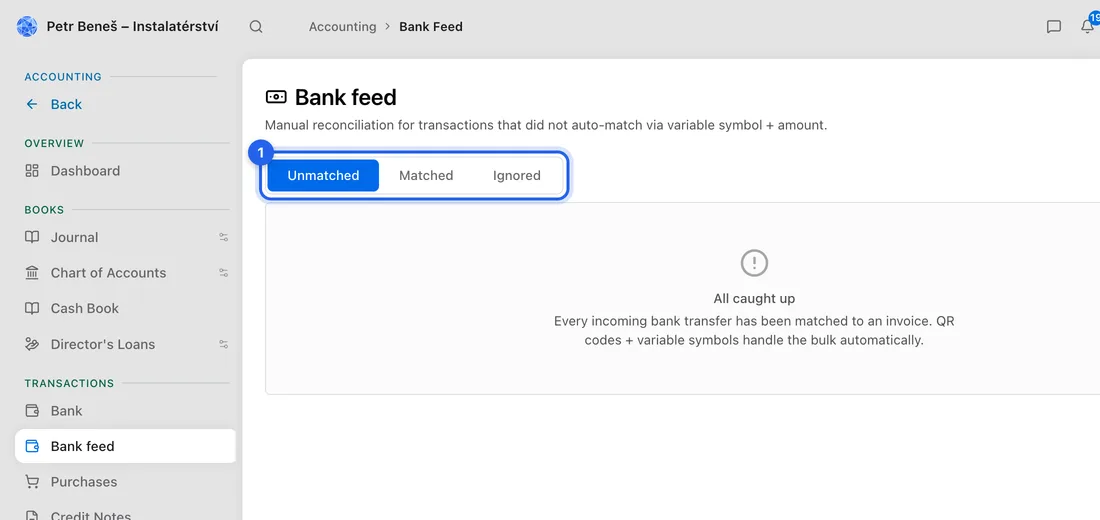
- 2Find the payment and click Match on its row.
- 3In Match to invoice, pick the right invoice. Suggestions with the same variable symbol come first, then invoices whose total is within about 5% of the payment.
- 4Click Match. You'll see "Invoice marked as paid." and the row moves to the Matched tab.
- 5If a row isn't business income — a transfer between your own accounts, a bank fee, a personal payment — click Ignore, pick a reason and click Ignore again. It moves to the Ignored tab.
Matched the wrong one? Open the Matched tab and click Unmatch on that row to put it back. If the payment is a card-gateway payout covering several payments, switch on "This is a payment gateway settlement" in the match dialog and click Record Settlement instead.
If something doesn't work
"No bank account selected" on the connect or import page: you opened it without choosing an account. Go back to Accounting → Bank and start from the account's card.
A red dot on the account card means the last sync failed. Open the account and click Sync now; the error is shown at the top of the page.
"No likely candidates" in the match dialog: no open invoice has that variable symbol or a similar amount. Check the invoice exists and has been sent.
An empty Unmatched tab shows "All caught up". If you haven't connected or imported anything yet, it will look the same — connect a feed first.