Take a deposit when clients book
Connect card payments, then turn on Take a Deposit to Book in Settings → Bookings page and set the percentage.
A deposit makes clients pay part of the price by card when they book, e.g. 20% of a 1 500 Kč service, so 300 Kč up front. The other 1 200 Kč is due at the appointment.
Before you start
Deposits need card payments, which are available on Solo Pro and up, and online booking must already be set up (see Let clients book you online).
Connect a payment gateway in Settings → Integrations (see Take card payments).
Online payments switch on by themselves when you connect your first gateway. If you've switched them off, turn Accept online payments back on at the top of Payment Gateways on the Integrations page.
The deposit is a share of the service's price, so each service you want a deposit for needs a price in Services & Products. Services without a price are booked without a deposit.
Switch on the deposit
- 1Open Settings and, under Scheduling, choose Bookings page.
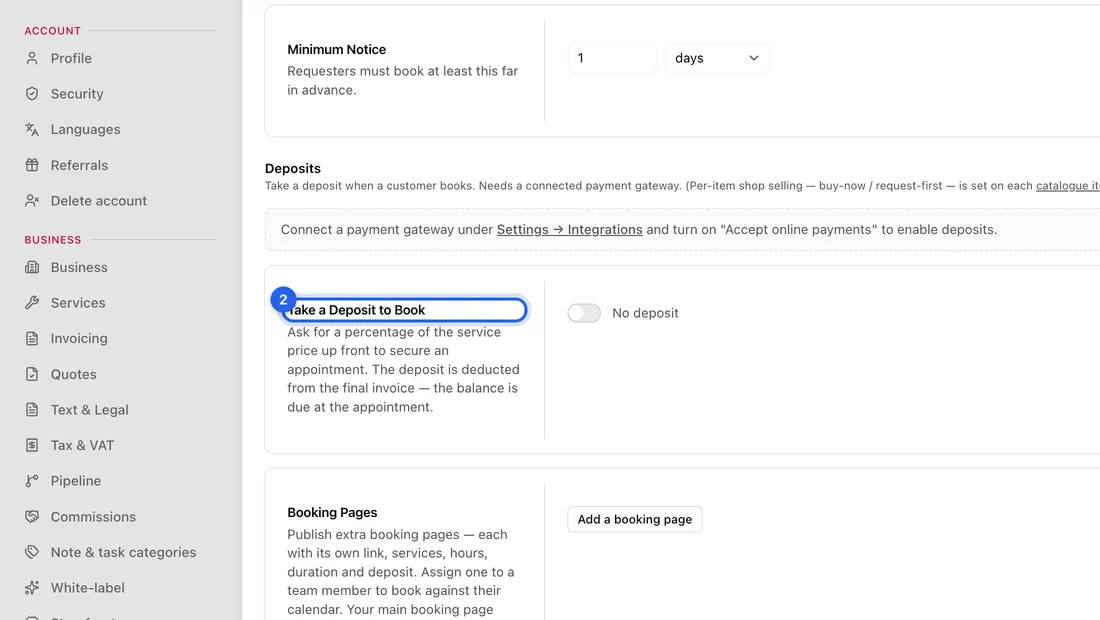
- 2Scroll down to Deposits and turn on Take a Deposit to Book. It now says “Deposit required”.
- 3In Deposit Amount, type the percentage of the service price, e.g. 20.
- 4Under When a Deposit Is Paid, choose Confirm automatically (the booking is confirmed as soon as they pay) or Still needs my approval (you still approve it in the calendar).
- 5Click Save changes at the bottom right. You'll see “Booking settings saved”.
Extra booking pages can have their own deposit. Under Booking Pages, click Edit next to the page, turn on Take a deposit, set Deposit % and click Save page.
What happens next
On your bookings page, a service with a price now shows a button like “Pay 300 Kč deposit & book”, with a note that the balance is due at the appointment. The client is taken to a payment page to pay by card.
An invoice for the full price is created in your Invoices when they book. The deposit is recorded as a payment on it, and the rest stays owing on that same invoice.
With Confirm automatically, a paid booking is confirmed and the client is emailed. If the time has been taken in the meantime, you're notified to sort it out and the client is told you'll arrange a new time or a refund.
With Still needs my approval, you're notified that a paid booking is waiting and the client is told their payment arrived. Approve or decline it in the calendar.
If you decline a booking that was paid, the deposit is refunded to the client's card through your gateway and the invoice is cancelled.
If something doesn't work
Take a Deposit to Book is greyed out: the note above it says why online payments aren't available and links to the fix. Your plan doesn't include card payments, no payment gateway is connected, Accept online payments is switched off, or the gateway is connected with test (Sandbox) keys.
The switch is on but clients aren't asked to pay: the service they picked has no price in Services & Products, or your plan no longer includes card payments.
A client booked without paying: the request still arrives as a pending booking. You can approve or decline it as usual.