Add a calendar entry by dragging
On the week view, drag down over empty time, click the block that appears, then give it a title and save.
The quickest way to put something in your calendar is to draw it. Drag over the time you need on the week view and the start and end times are filled in for you. This is on every plan and works with a mouse or trackpad on a computer.
Draw the entry
- 1Open Calendar from the left sidebar and make sure Week is selected at the top.
- 2Press on an empty slot at the time the entry should start and, still holding, drag down to where it should end. The block snaps to 15-minute steps.
- 3Let go. A shaded block appears showing the times, e.g. 09:00 – 10:30, with “Click to create” under them.
- 4Not quite right? Drag the block to another time or day, or drag its bottom edge to change the length. The × in its corner removes it.
- 5Click the block. The New Calendar Entry page opens with Start and End already filled in.
Just clicking an empty slot, without dragging, places a one-hour block you can then move, stretch or click.
Fill in the details
- 1Type a Title, e.g. Boiler service at 14 Oak Street. It's the only thing you must add.
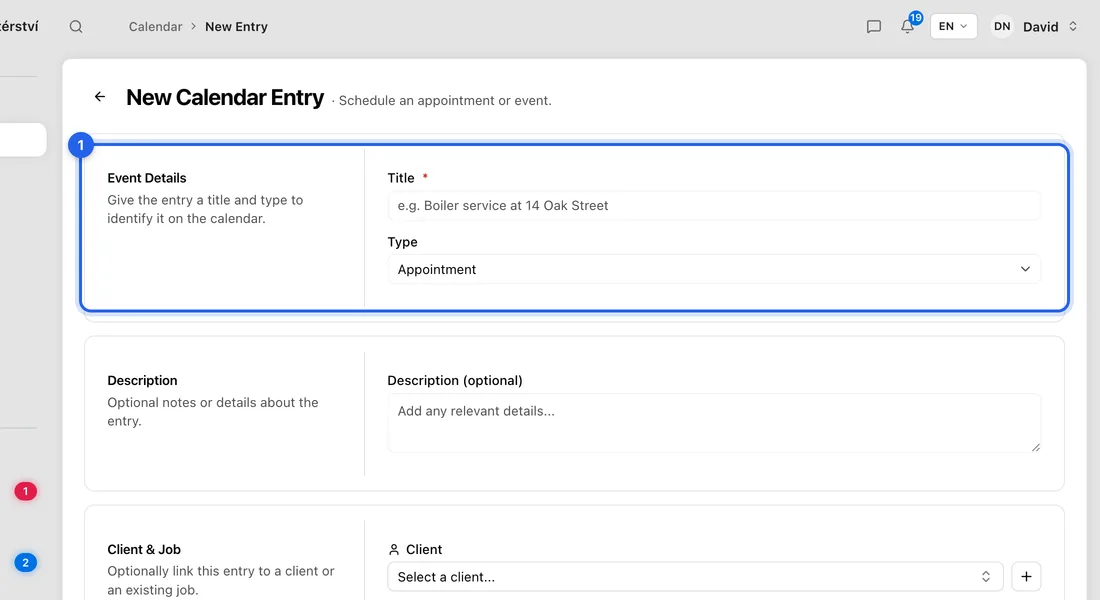
- 2Pick a Type: Appointment, Personal, Travel or Other. If you've named colours in your calendar settings, pick a Colour too.
- 3Under Client & Job, choose a Client and, if it's for existing work, link the Job. Both are optional.
- 4Check the times under Date & Time. Under Travel Time you can block out time to get there and back; for a client or job with an address, the app suggests how long.
- 5Click Save Entry. You'll see “Entry created” and you're back in the calendar with the new entry in place.
Other ways to add an entry
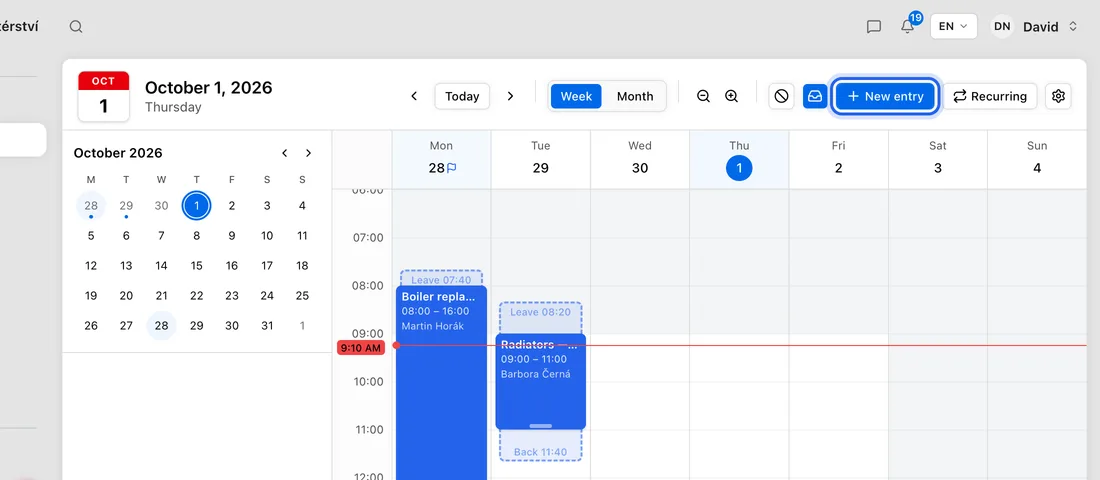
Click New entry at the top right of the calendar to open the same page without any times filled in.
In the Month view, click a day to start an entry on that day.
On a phone the calendar has no dragging. Tap the + button at the top instead.
If something doesn't work
Save Entry stays greyed out: the Title, Start or End is empty.
Clicking an empty slot doesn't place a block: an entry is selected (its details show on the left). The first click just deselects it. Click again.
“The calendar is not part of your access”: you're on a team seat that doesn't include the team calendar. Ask the business owner to turn on “See the team calendar” for you.
The calendar doesn't warn you if the new entry overlaps another one, so glance at the week before saving.