Move, resize and reschedule entries
Drag an entry to a new time, drag its bottom edge to change the length, or drop it on the small calendar to change the date, then confirm the move.
You can change an entry's time without opening it: drag it. Nothing is saved the moment you let go. The app first asks you to confirm, and if the entry has a client it asks whether to tell them. Dragging works with a mouse or trackpad on a computer, on every plan.
Move it to another time or day
- 1Open Calendar and choose Week at the top.
- 2Press on the entry and drag it to the new time or to another day in the same week. It moves in 15-minute steps and keeps its length.
- 3Let go. The entry is selected and a Confirm move box appears in the panel on the left, showing the old time crossed out and the new one.
- 4Confirm it (see “Confirm the change” below).
Make it longer or shorter
- 1Point at the bottom edge of the entry until the cursor changes to an up-and-down arrow.
- 2Drag the edge down to make it longer, or up to make it shorter. The shortest an entry can be is 15 minutes.
- 3Let go and confirm the change on the left, as for a move.
Send it to another week or month
- 1Drag the entry out of the week grid onto a day in the small calendar at the top left. The day lights up as you pass over it.
- 2For a later or earlier month, hold the entry over the small calendar's arrow for a moment. It turns the page every half second while you hold it there.
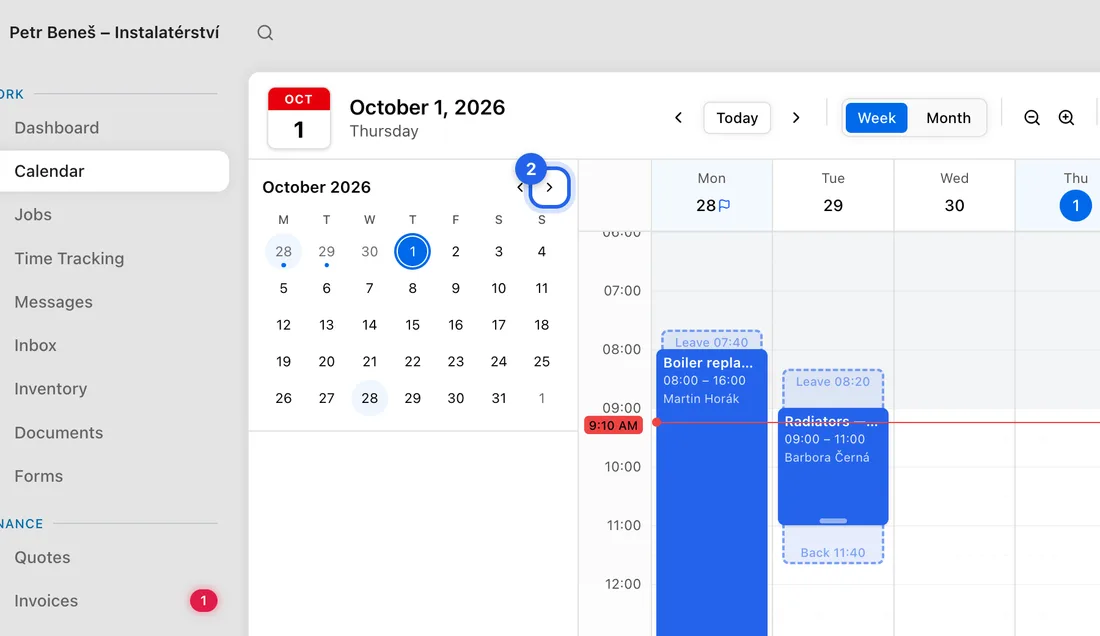
- 3Drop it on the day you want. It keeps the same time of day, and the calendar jumps to that week so you can see it.
- 4Confirm the change on the left.
In the Month view you can also drag an entry straight onto another day. It keeps its time.
Confirm the change
If the entry has no client, click Move to save it, or Discard to put it back.
If it has a client, you'll see a Note to client (optional) box and Preview email, and these buttons:
Notify client & move: for an Appointment, the client gets an email and a text message with the new time to accept or decline. Until they accept, the entry stays at its old time and shows “Awaiting client approval”. To take the proposal back, select the entry and click Cancel reschedule.
Edit & send: the same proposal, but it opens in your Inbox so you can reword the email before it goes. It needs your own email connected in Settings → Integrations → Email.
Move silently: moves it straight away without telling the client.
Discard: leaves the entry where it was.
If something doesn't work
An entry won't drag: it's a booking request you haven't accepted yet, or it's awaiting the client's approval of a new time. Deal with the request or cancel the reschedule first.
You dragged by mistake: click Discard, or drag it back to where it was. Nothing was saved or sent.
“Failed to update entry”: the change wasn't saved. Try again, or open the entry and change the times there.
On a phone there's no dragging. Open the entry and change its times instead.