Send an email campaign to your clients
Write one email, choose which clients get it by status or tag, check the count, then send it now or schedule it.
A campaign is one email sent to a group of your clients, such as a seasonal offer or a note that you're booking up. Your logo, brand colour and an unsubscribe link are added for you.
Before you start
Campaigns are available on Professional (10 campaigns a month) and Business (50 a month). You'll see Campaigns in the sidebar on every plan, but on other plans it opens an upgrade page.
Only clients with an email address can receive a campaign, and anyone who has unsubscribed is skipped automatically. To target a group, give those clients a tag or the right status (Lead, Prospect, Active or Inactive) on their client record first.
Emails go from your own mailbox if you've connected one and switched on Send automated emails from this mailbox. Otherwise they go from our system address.
Write and send a campaign
- 1Open Campaigns from the left sidebar (under Business) and click New campaign.
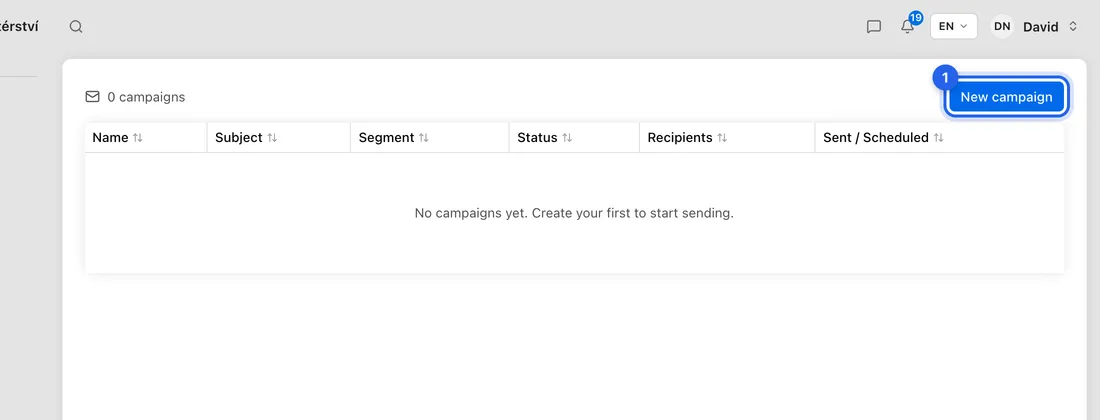
- 2Type a Campaign name (internal). Only you see this.
- 3Type the Subject line your clients will see.
- 4Write the email in Body (HTML). The box takes HTML, so put each paragraph between <p> and </p>, or paste HTML you've made elsewhere.
- 5Under Recipients, leave Saved segment on Custom filter. Click one or more Status buttons and Tags to narrow the list. Clients who match any chosen status and any chosen tag are included.
- 6Click Preview recipient count to see how many clients will get it.
- 7Check everything, then click Save & send now. To send later, pick a date and time under Schedule for later (optional) and click Schedule send instead.
What happens next
After Save & send now you'll see “Sent to … recipients” and the campaign's page opens with its results. A scheduled campaign shows “Scheduled for …” and goes out at that time.
Up to 500 campaign emails go out per day. If a campaign has more recipients than that, the rest go out automatically the next day.
When a client clicks the unsubscribe link, they're left out of every future campaign.
If something doesn't work
“Name, subject and body are required”: fill in all three boxes.
“No recipients”: no client with an email address matches your filter. Choose fewer statuses or tags, or check that your clients have email addresses.
“Monthly campaign limit reached” or “Daily send limit reached”: wait for the limit to reset, or upgrade to Business for 50 campaigns a month.
“Pick a send time in the future”: the time under Schedule for later is in the past.
Once saved, a campaign can't be edited, sent or cancelled from its page. Check it before you click Save & send now or Schedule send. If a draft needs changes, start a new campaign.