Cancel, downgrade or get a refund
Everything is in Settings → Billing & plan. In your first 14 days you can cancel with a full refund in one click. After that, cancelling or downgrading takes effect at the end of the period you've paid for.
You manage your plan yourself under Settings → Billing & plan. Nothing you've entered is deleted when you cancel or move to a smaller plan. It's kept, and comes back if you upgrade again.
Before you start
Only the workspace owner can change the plan, cancel or ask for a refund.
Get your money back (first 14 days)
- 1Go to Settings → Billing & plan.
- 2Under Money-back guarantee you see how many days you have left. Click Cancel & get a full refund.
- 3Read the summary and click Yes, refund me. You'll see “Refunded … — you're now on the Free plan.”
The 14 days start from your first payment. The refund goes back to your card, the subscription ends straight away and you move to Free. Each business can use it once. If the Money-back guarantee section isn't there, you're outside the window or it was already used.
Cancel your subscription
- 1Go to Settings → Billing & plan.
- 2Under Current Plan, click Cancel subscription.
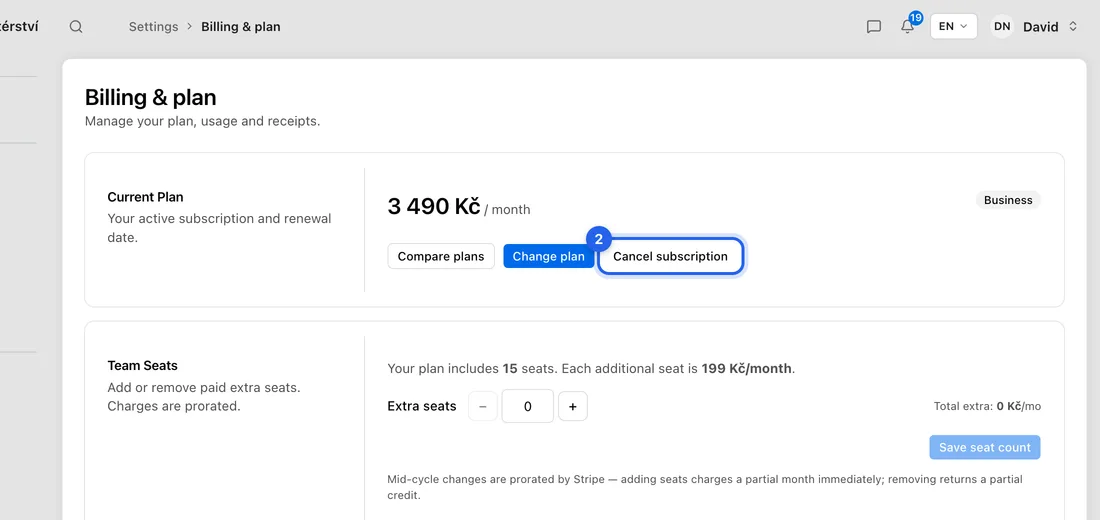
- 3Optional: pick a reason and leave a comment.
- 4Click Cancel subscription to confirm. You'll see “Your subscription will cancel at the end of the period.”
You keep full access until the date shown under Current Plan (Cancels on …), then move to Free. Changed your mind? Click Don't cancel in the banner at the top of the page before that date.
Move to a smaller or bigger plan
- 1Under Current Plan, click Change plan.
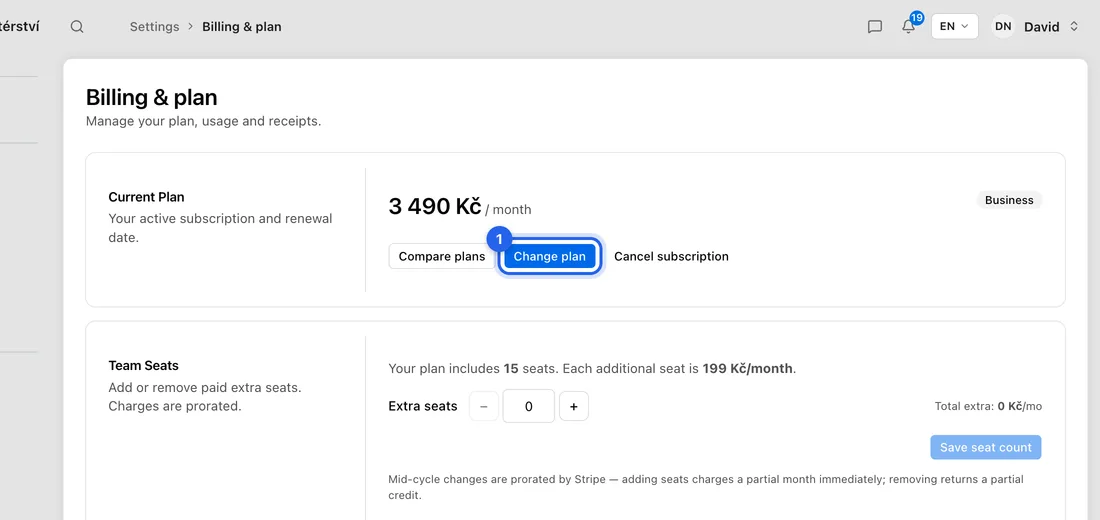
- 2Choose Monthly or Yearly (2 months free), then click the plan you want. The dialog shows what it will cost and, for a smaller plan, what you'll lose.
- 3For a smaller plan, click Schedule downgrade. It switches on the date shown, and you keep your current plan until then. For a bigger plan, click Confirm upgrade. It applies straight away and you pay the difference for the rest of this period today.
A scheduled downgrade shows under Current Plan as Switches to … on …. Click Keep current plan to call it off.
If something doesn't work
“To move to Free, cancel your subscription instead.”: Free isn't a plan you switch to. Use Cancel subscription.
“You already have a scheduled plan change. Cancel it first.”: click Keep current plan, then make the new change.
“Your bank needs to confirm the payment.”: approve the payment in your banking app or the window that opens.
“We couldn't process the refund. Please try again or contact support.”: try once more. If it fails again, use Report a problem in the account menu.