Connect your email to read and reply inside the app
Connect Gmail, Seznam, Centrum or any IMAP mailbox so client email lands in your inbox here, or connect it just for sending.
Connect your mailbox and your email shows up in Inbox, where you can read, reply and link messages to clients and jobs. If you only want invoices and quotes to go out from your own address, you can connect it for sending only, and we never read your inbox.
Before you start
Email is available on Solo and up. On Solo you can connect one mailbox (a sending-only one counts too); Professional and up can connect several and see them in one inbox.
There's no "Sign in with Google" or Outlook button. You connect with your mailbox password, and Gmail needs a one-time app password instead of your normal Google password. Have your email address and password to hand, and for Gmail, access to your Google account's security settings.
Connect your mailbox
- 1Open Settings from the left sidebar. Under Workspace choose Integrations.
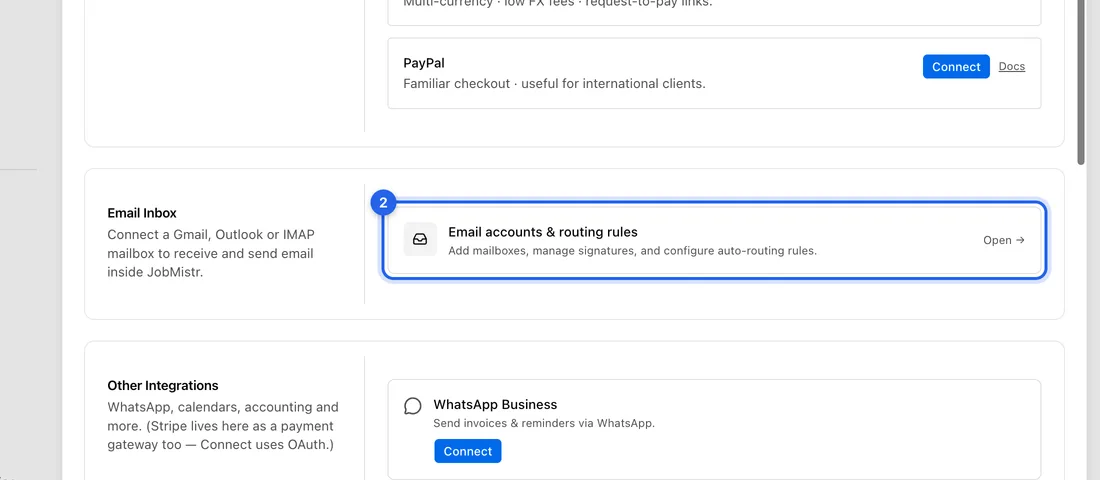
- 2Find Email Inbox and click Open → on the card "Email accounts & routing rules". This opens the Email accounts page.
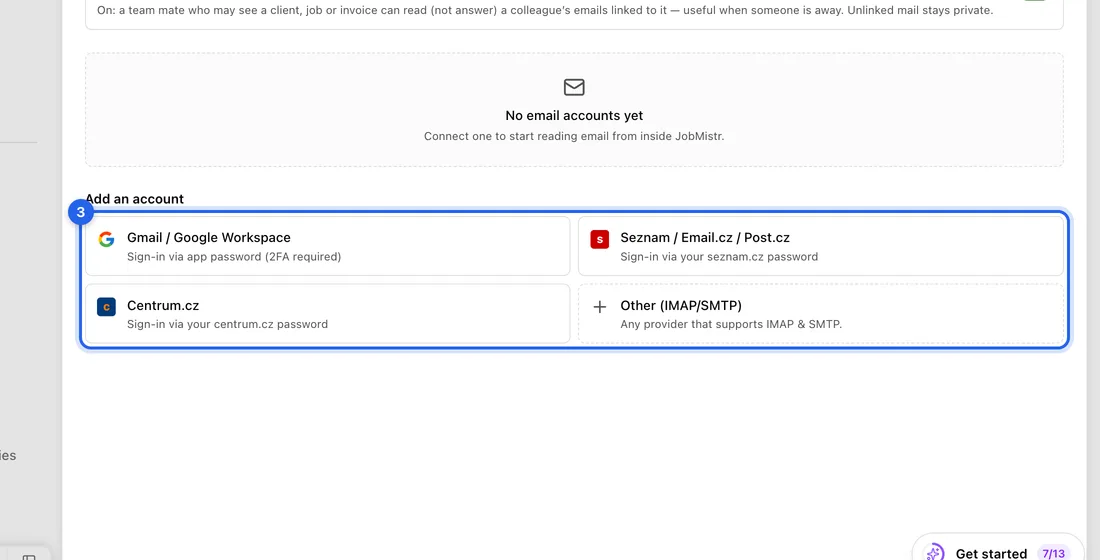
- 3Under Add an account, click your provider: Gmail / Google Workspace, Seznam / Email.cz / Post.cz, Centrum.cz, or Other (IMAP/SMTP) for anything else.
- 4Gmail only: the dialog first shows "Connect Gmail in 3 steps". Click Open Google security settings and turn on 2-Step Verification, then tick the box. Click Open app passwords, type JobMistr as the app name, click Create, copy the 16-character code, and tick the second box. Click Continue.
- 5Under "What will you use this for?" choose Full inbox (read, send and reply here) or Sending only (quotes and invoices go out from this address; your inbox is never read).
- 6Type your Email address and paste the App password (Gmail) or your mailbox Password. You can add a Display name (optional), such as Work.
- 7For Other (IMAP/SMTP), check the IMAP host and SMTP host. We fill them in when we recognise your provider.
- 8Click Test connection. When you see "Connected. Found … folders.", click Connect.
What happens next
You'll see "Email account connected — syncing in the background". The first sync starts straight away and then runs every couple of minutes. Open Inbox in the left sidebar to see your mail.
Your first mailbox is marked Primary, and Send automated emails from this mailbox is switched on. That means invoices, booking confirmations and reminders to clients go out from your own address, so clients can reply straight to you. If the mailbox is unavailable or has hit its daily sending limit, those emails go from our system address instead. Turn the switch off if you'd rather they always came from the system address.
To stop using a mailbox, click Remove mailbox on its row and confirm Disconnect. This removes its synced messages from JobMistr and can't be undone. Nothing is deleted from your actual mailbox.
If something doesn't work
Authentication failed: for Gmail, paste the 16-character app password, not your Google password. For Seznam or Centrum, check the password, and if you've turned on two-factor login there, you may need an app password from that provider.
Could not reach the mail server: check the IMAP host name (Other (IMAP/SMTP) only).
You don't see Email Inbox under Integrations, or Inbox isn't in the sidebar: email isn't on your plan. On Free you'll see an upgrade box instead.
"Connect another mailbox" with an Upgrade button: you've reached the one mailbox Solo allows. Remove the one you have to connect a different one, or upgrade to Professional.
A mailbox shows Error, Integrations shows Needs attention, or Inbox shows a sync error with a Reconnect link: the saved password stopped working (for example, you changed it or revoked the app password). Reconnect brings you to Email accounts. There's no way to edit the password, so click Remove mailbox and connect it again with the new one.