Turn an accepted quote into an invoice or a job
When a client accepts online, a draft invoice is made for you. If they said yes by phone, click Mark as accepted, then Convert to invoice. Create job starts a job from the quote.
Once a client says yes, you don't retype anything. The quote's lines become an invoice, and the quote can also start a job for you.
If your client accepted online
When your client clicks Accept Quote, the app makes a draft invoice straight away. You get a “Quote accepted” notification and an email.
- 1Click Quotes in the left sidebar and open the quote. It's in the Accepted column.
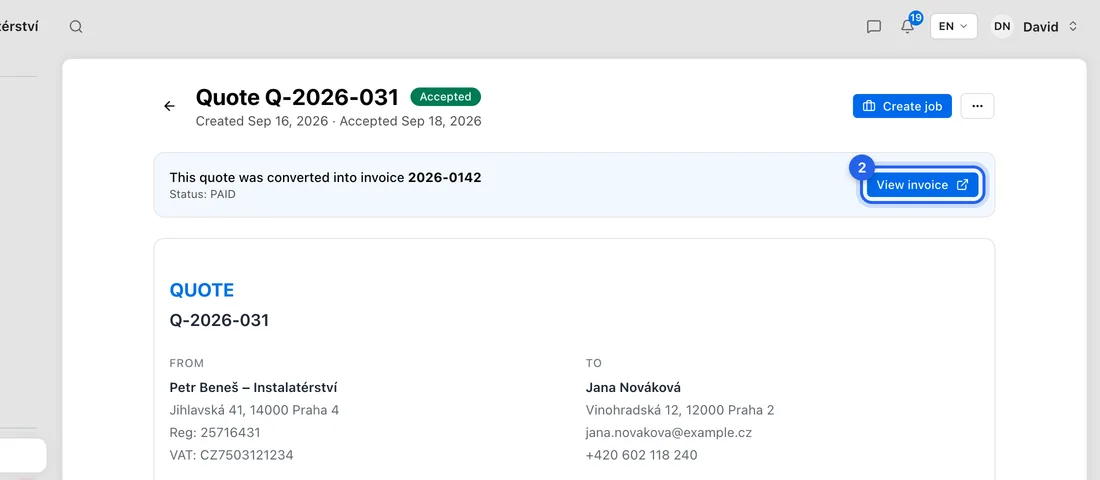
- 2Under the quote you'll see “This quote was converted into invoice …”. Click View invoice.
- 3Check the invoice and click Send to email it to your client.
If your client said yes by phone or email
- 1Open the quote from Quotes.
- 2Click Mark as accepted at the top. You'll see “Quote marked as accepted”. No invoice is made at this point.
- 3Click the ⋯ button (More actions) and choose Convert to invoice. If Convert to invoice is the blue button at the top, click that.
- 4You'll see “Invoice created” and the new invoice opens as a draft. Check it and click Send.
Quotes with a deposit
If the quote asks for a deposit, accepting or converting it makes a deposit invoice (zálohová faktura) for the deposit amount instead. The client ticks a box to agree to the deposit before they can accept online.
The deposit invoice is marked Sent, but nothing is emailed to your client. Open it from the note under the quote and click Send yourself.
Start a job from the quote
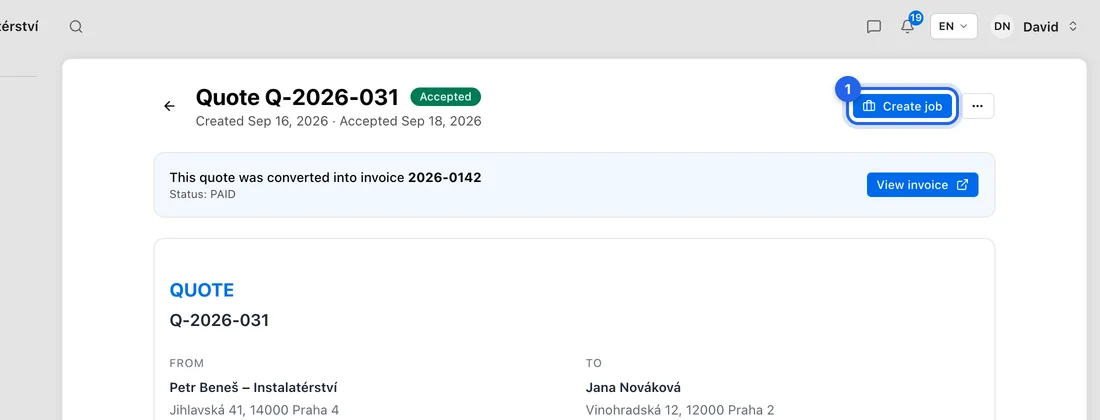
- 1Open the accepted quote and click Create job.
- 2The New Job form opens with the client, their address, the budget (the quote total) and the description (the quote's notes) filled in. The title is the quote's job type, or “Quote” and its number.
- 3Under Service, pick the Service and the Service type. These don't come from the quote, and Save stays greyed out until you pick them.
- 4Add a time under Budget & Schedule if you like, then click Save. You go back to the quote, which now shows View job.
Good to know
An invoice sits on a job only if the quote was linked to that job when the invoice was made. If you create the job after the invoice, the invoice stays off the job. The job then won't move to Invoiced and its profit won't count that invoice.
For work you'll track as a job, link the quote to a job when you create it (Job (optional) on the New Quote form). Or, for a yes by phone, click Create job before Convert to invoice.
If something doesn't work
There's no Convert to invoice: the quote isn't accepted yet (click Mark as accepted first), or it already has an invoice (use View invoice).
“Quote cannot be converted in its current state”: the quote was declined, cancelled or has expired. Create a new quote.
Your client sees “This quote cannot be accepted online because of how its deposit is set up”: the quote asks for a deposit on work that's VAT-exempt. Create a new quote without the deposit.
“Failed to convert to invoice”: nothing was created. Check your connection and try again.