Create and send a quote
Open Quotes → New quote, pick a client, add your lines and click Save & send. Your client gets a link where they can accept or decline.
A quote tells a client what the work will cost before you start. You pick the client, list the work and send it. The client opens a link and clicks Accept Quote or Decline, and you see the answer on your quotes board.
Before you start
Your client must be saved with an email address. The quote is sent to that address.
Quotes are on every plan. The Free plan allows 5 quotes a month.
Optional: set how long quotes stay valid under Settings → Quotes → Default Validity (30 days unless you change it), and your hourly and travel rates under Settings → Invoicing → Default Rates (Solo and up). The new-quote form fills these in for you.
Fill in the quote
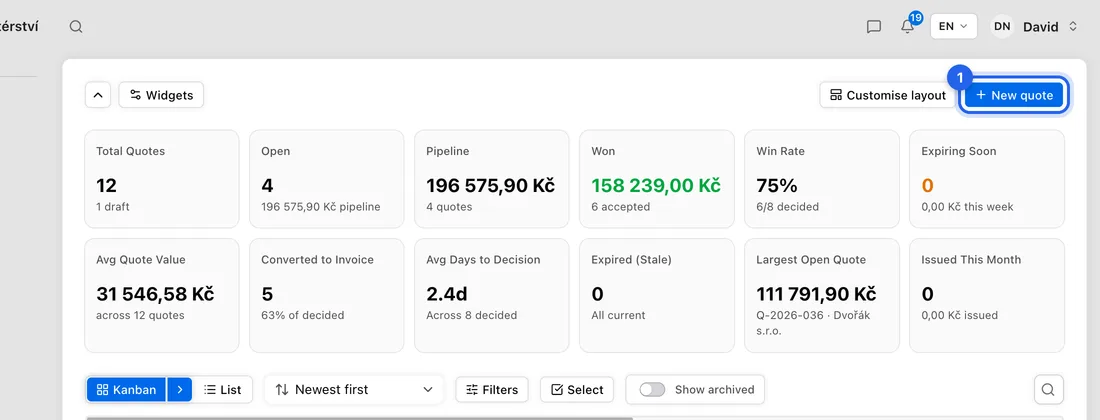
- 1Click Quotes in the left sidebar, then New quote at the top right.
- 2Under Client & Job, click Select a client… and pick your client. Not in the list yet? Click + (Add new client) next to it.
- 3Optional: under Job (optional), link the quote to a job you already have. Its invoice will then land on that job too.
- 4Under Line Items, fill in Item Name, Qty and Unit Price for the first line. Click Add Item for each extra line, or Add from Inventory to pick something you stock.
- 5Charging by the hour? Under Time & Travel (optional), enter the Work Time and your Hourly Rate. A Labour line is added to your items for you. Leave this section empty for a fixed price.
- 6Under Additional Details, check the Valid until date. If you're a VAT payer, check the VAT rate (%) too.
- 7Want money up front? Under Deposit (optional), pick % of total or Fixed amount and enter the figure.
- 8Check the totals under Summary.
Send it
- 1Click Save as draft first. The saved quote opens so you can check it the way your client will see it.
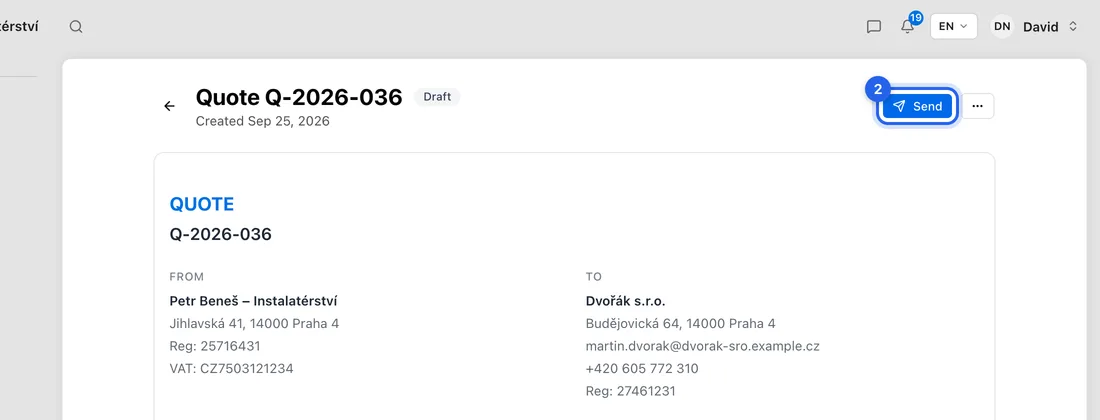
- 2If it looks right, click Send at the top. You'll see “Quote sent to client”.
- 3Sure it's right already? Click Save & send on the form instead. It saves and sends in one go.
What happens next
Your client gets an email with a link to the quote. The PDF isn't attached, but they can download it from the page. The email comes from your own mailbox if you've connected one (Solo and up). Otherwise it comes from the JobMistr address.
When they open the link, the quote moves to Viewed on your board. When they click Accept Quote, it moves to Accepted and a draft invoice is made for you (see Turn an accepted quote into an invoice or a job). If they decline, you get their reason if they gave one.
No answer yet? The app sends your client a reminder 3, 7 and 14 days after sending. You can change these days under Settings → Quotes → Quote Follow-ups. After the Valid until date, the quote moves to Expired.
Good to know
A quote has one VAT rate for all its lines.
Quantities are saved as whole numbers, and that includes the hours on the Labour line. For example, 2 h 30 min at 800 Kč an hour is saved as 3 hours, which is 2 400 Kč instead of 2 000 Kč. Check the saved quote before you send it.
A saved quote can't be edited. To change it, open it, click ⋯ → Cancel quote and create a new one.
Clients accept or decline a quote. They don't sign it.
If something doesn't work
“Please select a client”: pick a client under Client & Job first.
“Add at least one line item”: every quote needs at least one line with a name and a quantity.
“Invalid email”: the client you picked has no email address saved. Add one to the client, then create the quote again.
“quota_exceeded”: you've used the Free plan's 5 quotes for this month. Upgrade under Settings → Billing & plan, or wait until next month.
“Quote saved” and then “Failed to send quote”: the quote was saved but not sent. Open it from Quotes and click Send.