Cancel an invoice or issue a credit note
Cancel an invoice nobody has paid with Delete on the Invoices page. To reverse all or part of an issued invoice, go to Accounting → Credit Notes → New credit note.
There are two ways to undo an invoice. Cancelling marks it as cancelled, as if it had never been issued. That's for a mistake nobody has paid yet. A credit note is a separate tax document that takes back all or part of an invoice, for example a return, a price you got wrong, or a discount agreed afterwards. The invoice itself stays as it was.
Before you start
Cancelling works on every plan.
Credit notes are on Solo Pro and up. On a lower plan, Credit Notes doesn't appear in the Accounting menu.
A credit note always corrects one specific invoice, and that invoice must have been issued (not a draft).
Cancel an invoice
- 1Click Invoices in the left sidebar.
- 2Right-click the invoice (or hover over its card and click the ⋯ button) and choose Delete.
- 3In Cancel this invoice?, click Cancel invoice. You'll see “Invoice cancelled”.
Sent it to the wrong client? Open the invoice, click the ⋯ button at the top and choose Recall invoice…. It cancels the invoice and emails whoever received it, asking them to delete their copy.
Issue a credit note
- 1Click Accounting in the left sidebar, then Credit Notes (under Transactions).
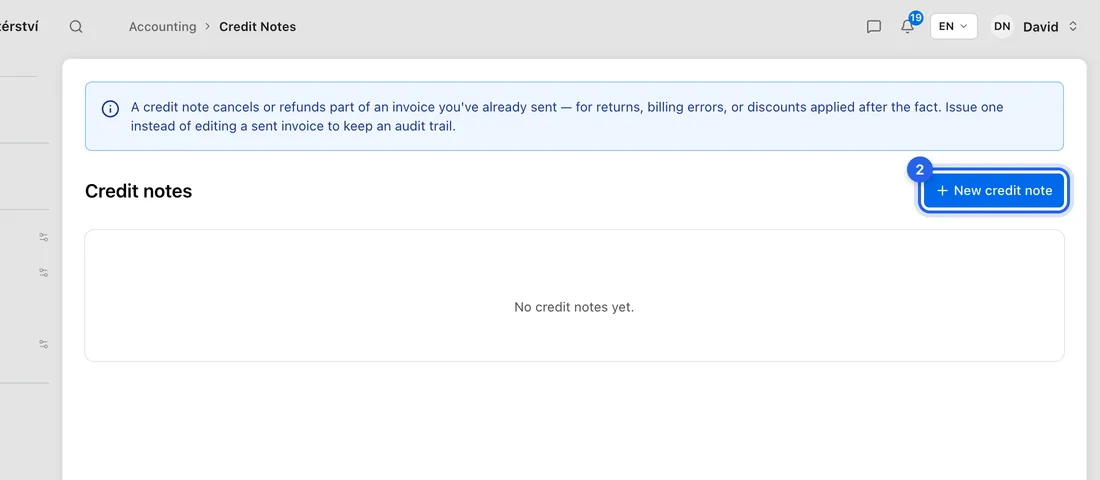
- 2Click New credit note.
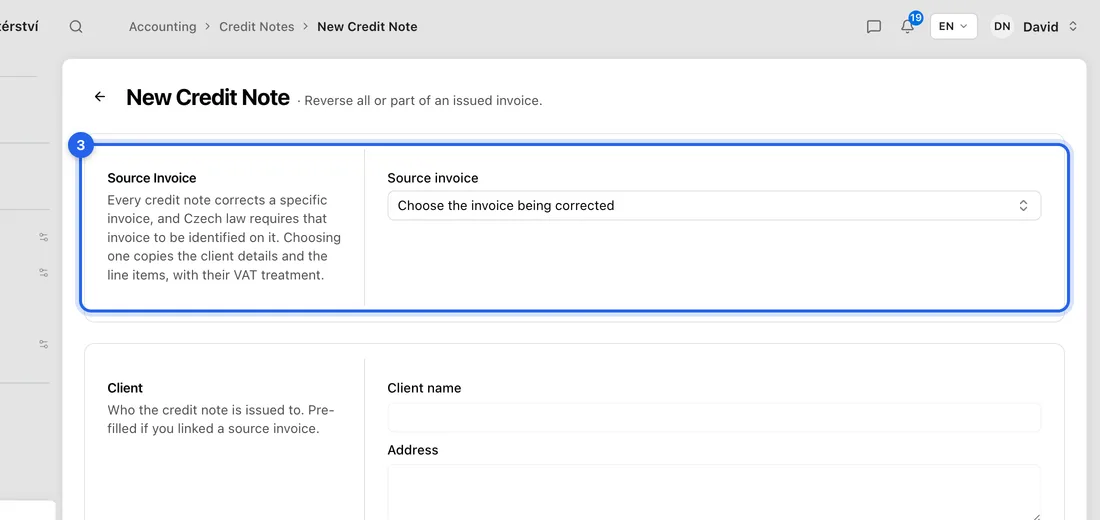
- 3Under Source Invoice, click Choose the invoice being corrected and pick the invoice. The client and all its lines are copied in.
- 4Under Details, check the Issue date and Tax point, and fill in Reason (e.g. “Returned 1 radiator”). Leave VAT rate (%) as it is: it must match the invoice.
- 5Under Items, keep only what you're taking back. To credit part of the invoice, lower the Qty or Unit price, or remove lines with the bin icon.
- 6Check the Total at the bottom and click Save. You'll see “Credit note created” and it's saved as a Draft.
- 7Open it from the Credit notes list and click Issue. You'll see “Credit note issued”.
- 8Click Send to customer to email it. You'll see “Credit note sent to …”.
What happens next
For example: an invoice for 10 000 Kč plus 21% VAT asks for 12 100 Kč. The client returns goods worth 2 000 Kč. You credit one line of 2 000 Kč, so the credit note totals 2 420 Kč (420 Kč of it VAT), and the client now owes 9 680 Kč.
The invoice shows a Credited by credit note banner with a link to it, and its balance shows the amount as Less credit notes.
If you're a VAT payer, the credit note goes on your VAT return for the period of its tax point. The client gets an email with the credit note PDF attached.
A draft credit note can still be deleted. Once issued, it can only be voided: click Void, but only if it should never have been issued (the wrong invoice, or a duplicate). If just the amount was wrong, issue a second credit note for the difference.
If something doesn't work
“This invoice has payments recorded against it…” when cancelling: an invoice with money on it can't be cancelled. Issue a credit note instead.
“This invoice falls in VAT return period … which has already been submitted…”: the VAT return is filed, so issue a credit note instead of cancelling.
“This invoice has already been credited by …”: an invoice with a credit note can't also be cancelled. Void the credit note first if it was a mistake.
Save stays greyed out: pick the source invoice, fill in the client name and Reason, and give every line a name.
“The VAT rate on this credit note does not match the invoice it corrects.”: set VAT rate (%) back to the invoice's rate.
Issue is refused because the VAT return for that period is already filed: change the Tax point to a date in the current period.
“This credit note has no customer email address on it…”: add an email to the client and click Send to customer again.