Make the dashboard yours
Choose which figures and cards show, turn off alerts you don't need, snooze single items, and arrange your widgets.
The Dashboard has two parts. At the top is today's view: a row of figures, then cards listing what needs you (Money, Schedule, Sales & follow-ups and Admin). Below it is Your widgets, charts and numbers you add yourself. You can shape both.
Choose which figures and cards show
- 1Open Dashboard from the left sidebar.
- 2Click Widgets at the top right, next to the greeting. Every figure and card now shows a switch.
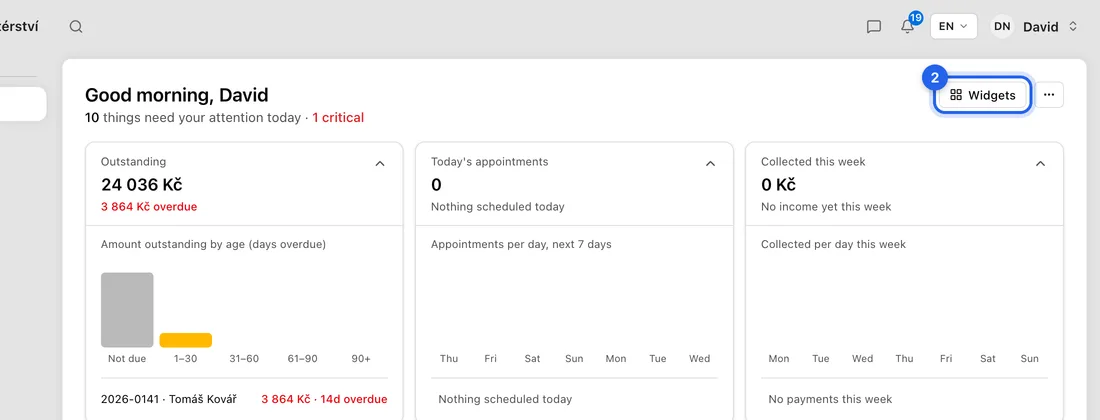
- 3Switch off the ones you don't want to see.
- 4Click Done. Your choice is saved to your account.
To shrink a card to a one-line summary, click the small arrow in its header. Click it again to see the full list.
Turn off alerts you don't use
- 1On a card, click the gear in its header. You'll see a list such as "Money signals: Turn off anything you don't use."
- 2Switch off each kind of alert you don't want. It disappears from the card from now on.
- 3Or, on any line in a card, open its menu (the ⋮ that appears on hover, or right-click) and choose Hide all "…" to turn off that kind of alert in one go.
Snooze or dismiss a single item
- 1Hover over the line and click ⋮ (Item actions), or right-click it.
- 2Choose Snooze and pick Until tomorrow, In 3 days, Next week, or Pick a date…. Or choose Dismiss this item to remove it for good.
- 3Changed your mind straight away? Click Undo on the message that appears.
To bring back something you snoozed or dismissed earlier, click ⋯ (More options) at the top right and choose Manage snoozed & dismissed, then Restore.
The ⋯ menu
Show critical only: shows just the most urgent items. It appears when something is critical, and you can also click the red "… critical" under the greeting. It resets when you reload the page.
Daily digest email: a morning email with everything that needs you that day. To choose the send time, your timezone and what goes in it, go to Settings → Preferences → Notifications → Daily Digest.
Collapse all sections or Expand all sections, Show all hidden (brings back every card and alert you've switched off) and Refresh now.
Arrange your widgets
- 1Under Your widgets, click Add widget. The widget list opens.
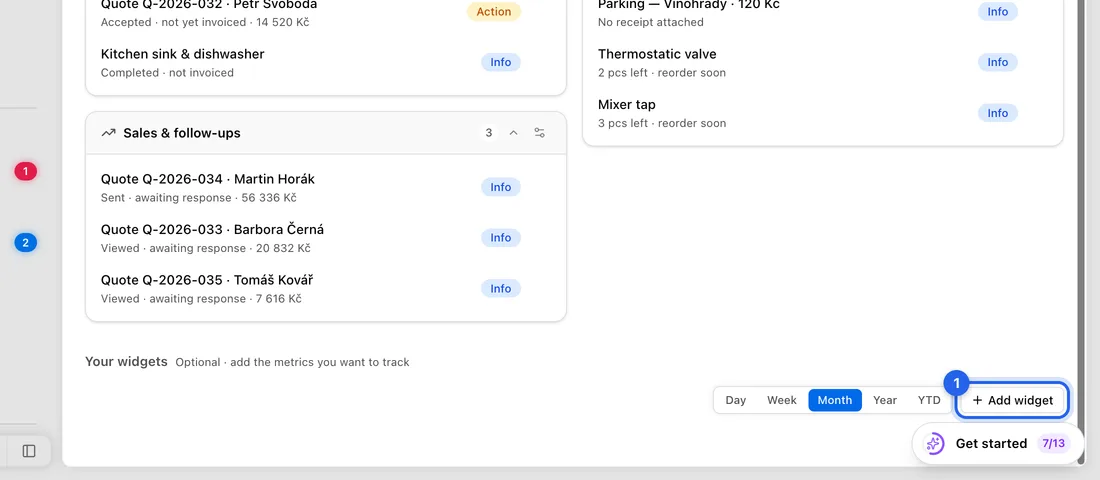
- 2Search or scroll, then click Add on each widget you want (click Remove to take one off). Click Done to go back to the dashboard.
- 3To move a widget, drag it to a new spot. To resize it, drag one of its corners.
- 4To remove a widget, click the × in its header (Remove widget).
- 5Use Day, Week, Month, Year and YTD above the widgets to change the period the figures cover.
Changes to your widgets are saved as you make them. Moving and resizing work on a computer; on a phone or tablet the widgets are stacked in a list.