Reorder, hide or group items in the sidebar
Drag sidebar items into your own order, hide the ones you don't use, and rename or add headings.
You can arrange the left sidebar around the way you work: change the order, hide pages you never open, and sort items under your own headings. Hiding an item only removes it from the sidebar. Nothing is deleted, and you can still reach the page through search.
Open the sidebar settings
- 1Open Settings from the left sidebar.
- 2Under Preferences choose Navigation. You'll see Menu Items: your sidebar laid out as groups, each with its items.
Change the sidebar
- 1To hide an item, switch off the toggle on its row. Switch it on again to bring it back. Settings and Support can't be hidden; they show Always visible.
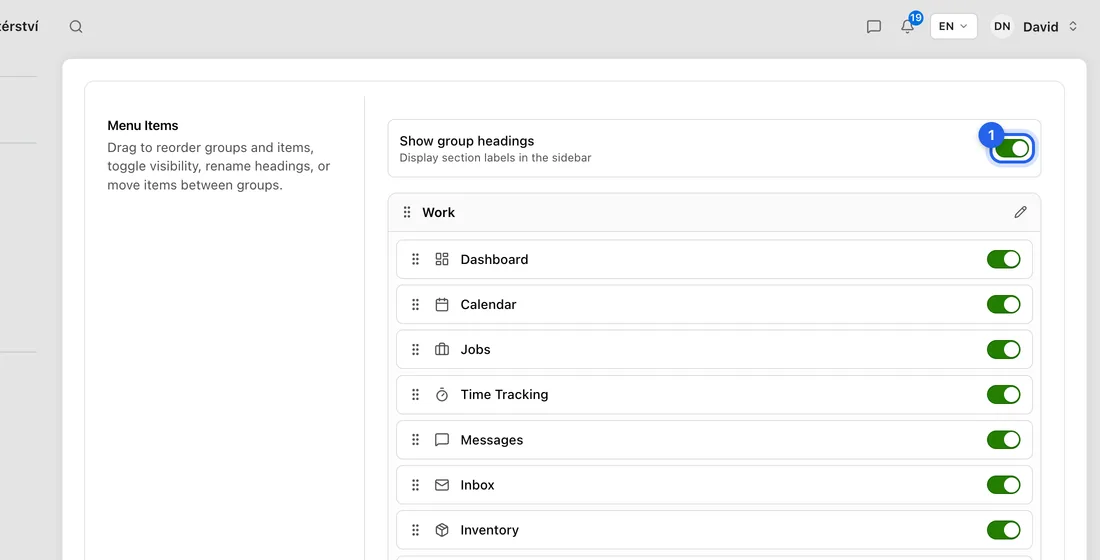
- 2To reorder, drag an item by the dotted handle on its left. You can drop it higher or lower in the same group, or into a different group. Drag a group by the handle next to its heading to move the whole group.
- 3Accounting has sub-pages. Click the arrow on its row (Expand sub-pages) to reorder them or hide the ones you don't need.
- 4To rename a heading, click the pencil next to it, type the new name and press Enter.
- 5To add your own heading, click Add heading at the bottom. A New Group appears for you to rename; drag items into it where it says Drop items here.
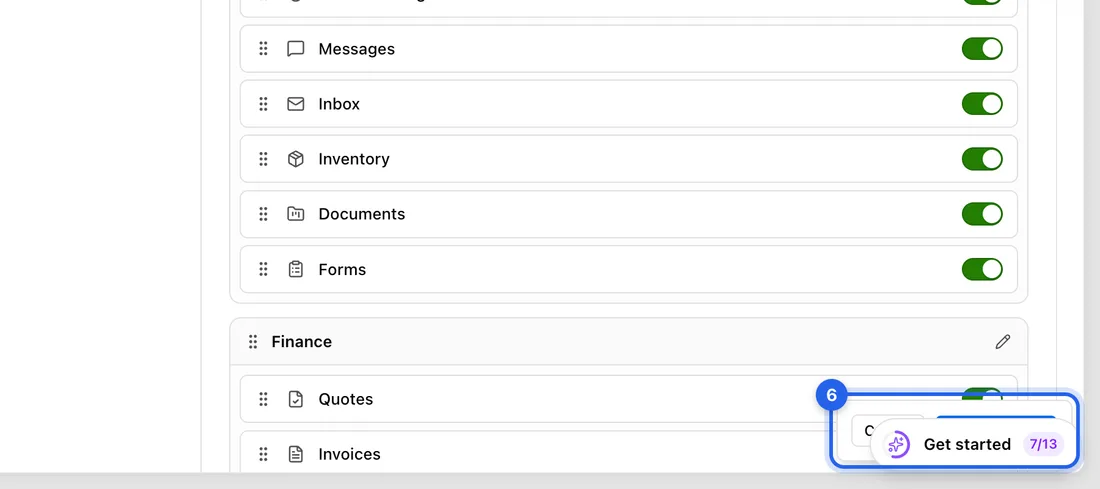
- 6When you're happy, click Save changes in the bottom-right corner. Cancel puts everything back as it was.
Good to know
Show group headings switches the headings in the sidebar on or off. With it off, you get one plain list in your chosen order.
A heading you added can be removed with its × once it's empty. The built-in groups can't be removed, only renamed.
Reset to default brings back the original order, groups and names. Like every change here, it only takes effect when you click Save changes.
Your layout is saved to your account, so it follows you to other devices and to the phone menu. Team members each have their own.
An item you can't see here at all isn't on your plan or isn't allowed for your team role. It isn't hidden by you, so there's nothing to switch on.