Invite a team member
Go to Settings → Team → Add member, enter their email, pick Admin or Member and click Send invite. They get an email link that's valid for 7 days.
Add the people who work with you so they can sign in to your business with their own login. You choose what each person can see and do.
Before you start
Team members are available on Professional and Business. Professional includes 5 users and Business 15, and you count as one of them. Extra seats cost 149 Kč a month on Professional and 199 Kč on Business. Add them under Settings → Billing & plan → Team Seats.
Want to give your accountant access? You don't need a team seat for that. Use Accounting → Bookkeeper → Invite a bookkeeper instead (Solo and up, free of charge).
Send the invite
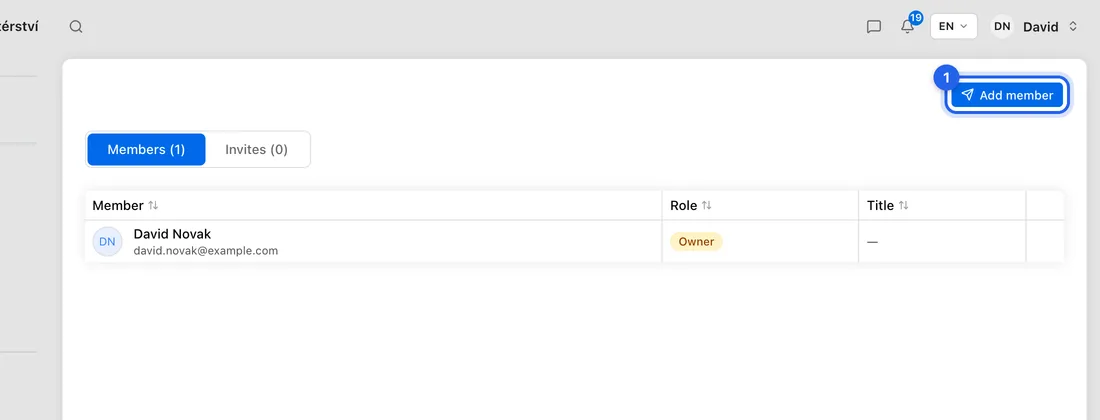
- 1Go to Settings → Team and click Add member.
- 2Under Contact details, type their Email.
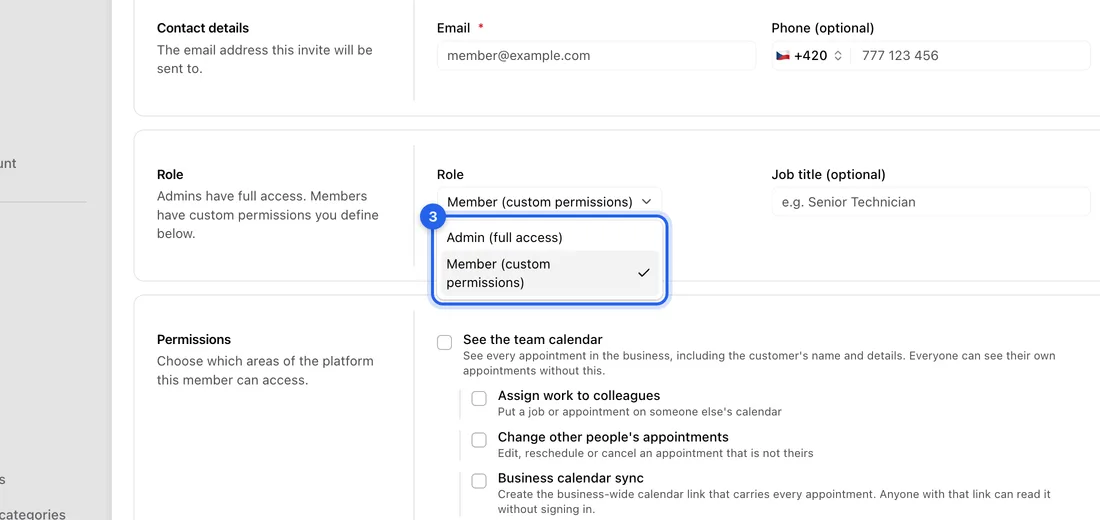
- 3Under Role, pick Admin (full access) or Member (custom permissions). Admins can do everything you can. Only the owner can invite an Admin.
- 4Optional: add a Job title, for example Senior Technician.
- 5Optional: under Sub-categories, tick the services this person works on. It narrows who you're offered when you assign a job.
- 6For a Member, tick what they may use under Permissions, for example See the team calendar, All clients or Invoices. Everything starts unticked, so a new Member only sees the jobs you assign to them.
- 7Click Send invite. You'll see “Invite sent. They'll receive an email to set up their account.”
What happens next
They get an email with an Accept Invitation button. The link works for 7 days. The invite waits under the Invites tab on Settings → Team, with its expiry date.
They open the link, click Sign In or Create Account using the invited email, then click Accept Invitation. They move to your Members tab. If they already have their own business on JobMistr, they open yours from Workspaces in the account menu (see Switch between businesses).
To change what someone can do later, open the ⋯ menu on their row and choose Edit role. Deactivate removes their access but keeps their calendar entries and jobs.
The Phone field on the invite form isn't saved with the invite. Add the phone number once they've joined.
If something doesn't work
You see an upgrade page instead of the team list: your plan has no team members. Upgrade to Professional or Business under Settings → Billing & plan.
“You've used all … of your team seats. Add a seat in Billing to invite more.”: add a seat under Settings → Billing & plan → Team Seats, or deactivate someone.
“An invite has already been sent to this email”: an invite is still waiting. Cancel it on the Invites tab (⋯ → Cancel invite) and send a new one.
“User is already a team member”: that person is already on your team.
“Only the workspace owner can grant the Admin role.”: ask the owner to send the invite, or invite them as a Member.
They never got the email: check their spam folder. Then cancel the invite and send it again.
The link says the invite has expired: send a new invite. Links last 7 days.