Change the VAT rate or give a discount on an invoice
As a VAT payer, set the VAT Rate (%) under Additional Details for one invoice. There's no discount field: lower the line's price instead.
Each invoice carries one VAT rate for all its lines. It starts from your default rate, and you can change it on a single invoice without touching the default.
There's no separate discount field. To give a discount, lower the price on the line.
Before you start
The VAT Rate (%) field only appears if you're VAT registered. Set that under Settings → Business → Your VAT status (see Set your VAT status). If you're not registered, your invoices carry no VAT and there's nothing to change.
This works on every plan.
Change the VAT rate on one invoice
- 1Click Invoices in the left sidebar, then New Invoice. To change an invoice you've already made, open it, click the ⋯ button at the top and choose Edit.
- 2Pick the client and add your lines as usual.
- 3Under Additional Details, type the rate into VAT Rate (%). For a Czech client use 21, 12 or 0.
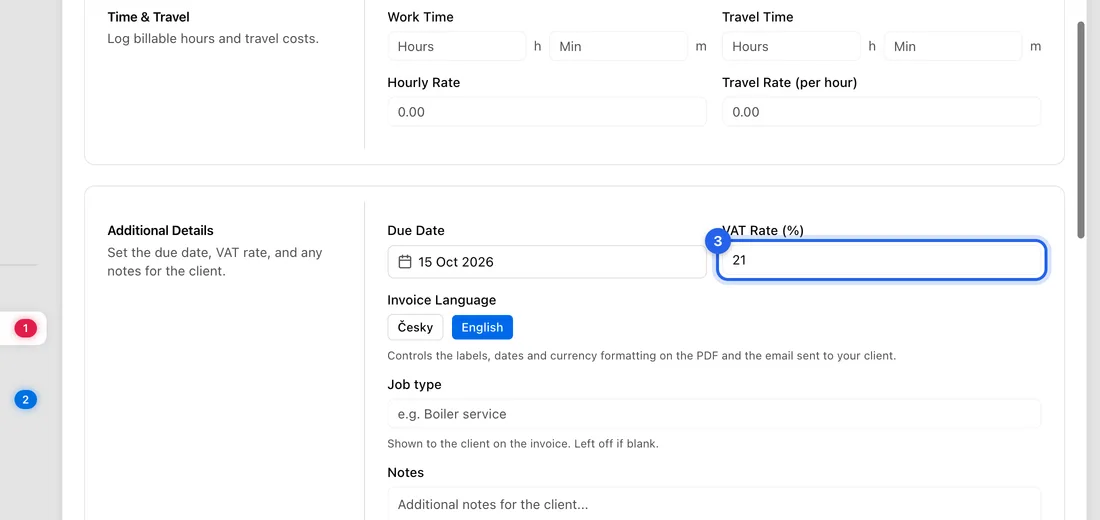
- 4Check the Summary: the VAT line shows the new rate, e.g. VAT (12%).
- 5Click Send Invoice, or Save as Draft. When editing, click Save Changes.
Change your default rate
- 1Open Settings from the left sidebar and choose Tax & VAT.
- 2Under Tax Rates, click the star next to the rate you want as your default. The filled star marks the default.
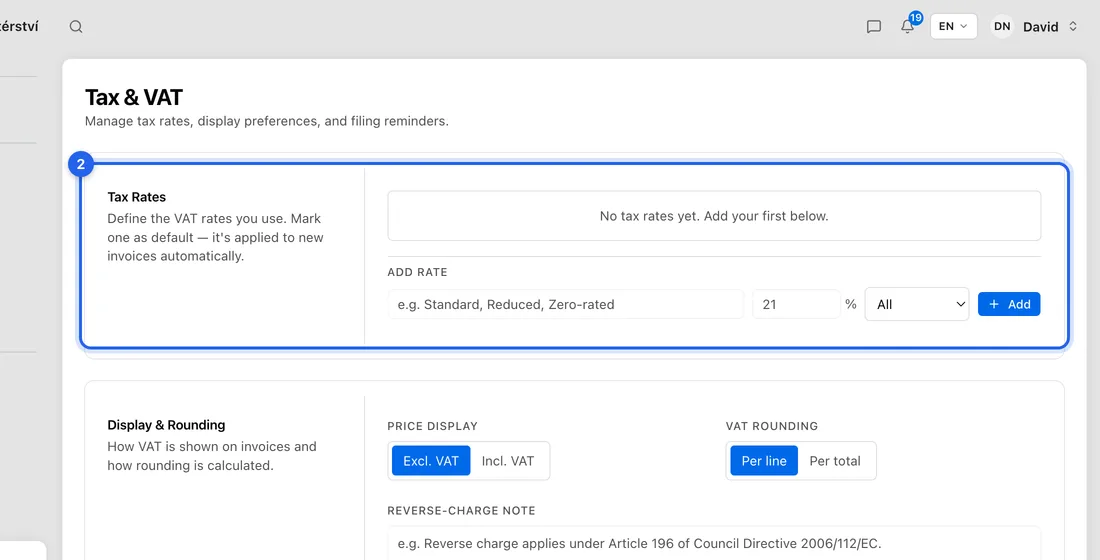
- 3No rate you need in the list? Under Add rate, type a name (e.g. Reduced) and the rate (e.g. 12), then click Add.
The default is used on new invoices. Invoices you've already made keep the rate they have.
Give a discount
Lower the Unit Price on the line, and say so in the Item Name if you want the client to see it. For example, a 2 000 Kč boiler service with 10% off: name the line “Boiler service (10% discount)” and enter 1 800 as the Unit Price. At 21% VAT the invoice then shows 378 Kč of VAT and a total of 2 178 Kč.
A separate minus line isn't possible: prices can't go below zero.
Client abroad, or reverse charge
If the client has a foreign VAT number or an address outside the EU, a VAT treatment box appears under Additional Details. Customer's reverse charge (default) means no Czech VAT is charged and the client accounts for it; pick Czech VAT only if Czech VAT really applies.
For a Czech client with a DIČ, VAT payers also see Czech domestic reverse charge (§92a). It's only for the supplies the law lists, such as construction work or scrap metal, and it then asks for the CZ-CPA code and the supply code.
If something doesn't work
There's no VAT Rate (%) field: you're not set as VAT registered. Check Settings → Business.
The field is greyed out with “No VAT — this invoice precedes your VAT registration on …”: the invoice is dated before your VAT registered since date, so it can't carry VAT.
The invoice won't save after you typed a rate like 15: a Czech invoice can only use 21%, 12% or 0%.
“Your tax rates could not be loaded, so the rate shown is only a guess.”: leave the rate alone and the invoice uses your real default, or type the rate you want.