Reuse a checklist across jobs
Write the steps once in a service's Checklist (Services & Products), then add them to any job with Apply a service template… in the job's Checklist.
If you go through the same steps on every job of one kind, write them down once on the service. Then add them to a job in one click and tick them off as you go.
Before you start
The checklist lives on a service in Services & Products. If you haven't added any services yet, see Set up your services and prices.
Write the checklist on a service
- 1Click Services & Products in the left sidebar.
- 2Click the service's card to open it.
- 3Scroll down to Checklist and click Add step.
- 4Type the first step, for example “Turn off the water supply”. Click Add step again for each further step. The X next to a step removes it.
- 5Click Save. You'll see “Saved”.
Add the steps to a job
- 1Open the job from Jobs.
- 2Scroll down to the Checklist section.
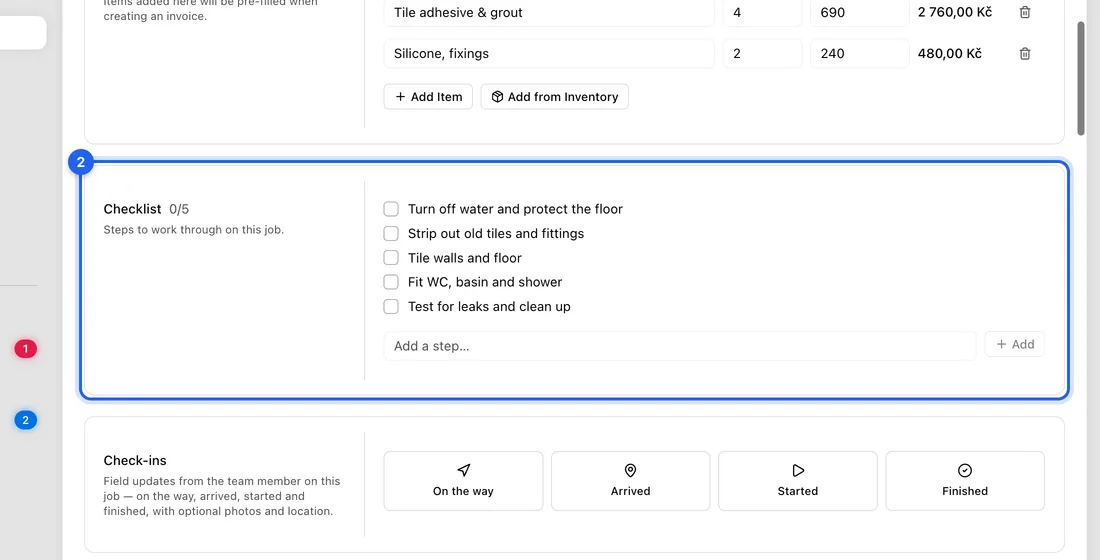
- 3Click Apply a service template… and pick the service. Its steps are added to the end of the job's list.
Work through the checklist
- 1Tick a step's box when it's done. The count next to Checklist, for example 2/5, shows how far you are.
- 2Need a one-off step for this job only? Type it in Add a step… and click Add.
- 3To remove a step, point at it and click the bin (Remove step).
Good to know
Nothing is added to a job on its own, not even when you fill a new job with Load from template. Use Apply a service template… on the job.
Applying the same service twice adds its steps twice.
Changing a service's checklist later doesn't change jobs that already have the steps.
If something doesn't work
There's no Apply a service template… on the job: none of your services has a checklist yet. Add one first.
A step you added or ticked is gone after you reload the page: it wasn't saved, and the app doesn't show an error for this. Check your connection and do it again.
You can't see the bin on a phone or tablet: it only shows when you point at a step with a mouse.