Add photos to a job
Add up to 5 photos under Job Details when you create the job. They show on the job page. On Professional and up, your team can add before and after photos when they check in as Finished.
Photos of the site or the problem help you quote and plan. You add them when you create the job, and they stay with it.
Add photos to a new job
- 1Click Jobs in the left sidebar, then New Job at the top right.
- 2Fill in the client, service and title as usual.
- 3Under Job Details, find Photos (optional) and click Add Photos.
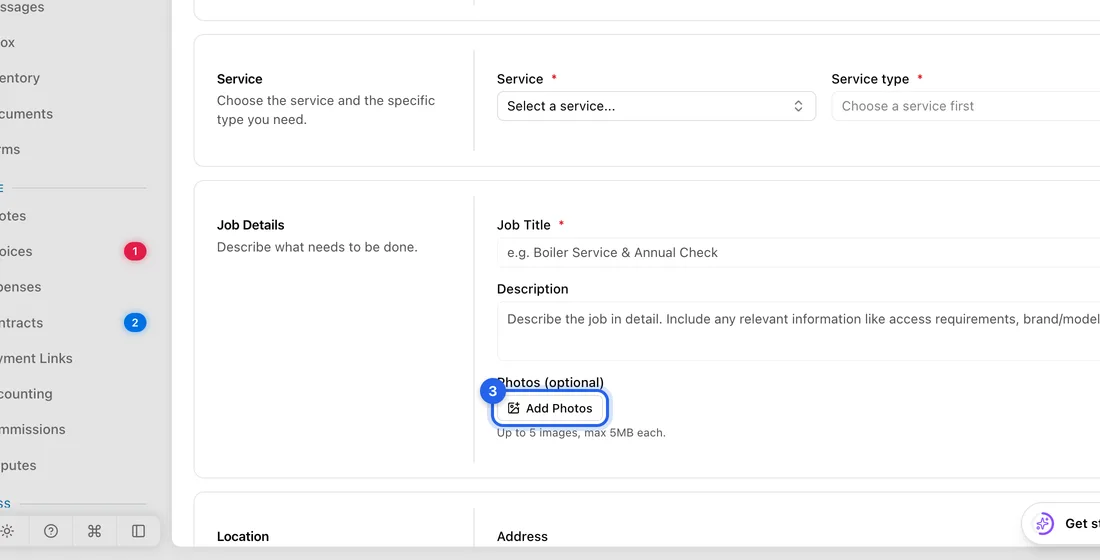
- 4Pick up to 5 images from your computer or phone. Each can be up to 5 MB. You'll see “Image uploaded” for each one.
- 5Picked the wrong one? Click the X on it (Remove image).
- 6Click Save, or Save as draft. The photos are saved with the job.
See the photos
- 1Open the job from Jobs.
- 2The photos are under Photos in the Job Details section. Click one to see it larger, and use the arrows to go through them.
Before and after photos (Professional and up)
With team features, whoever does the job can add photos when they report it done.
- 1Open the job. At the top you'll see the Check-ins box with On the way, Arrived, Started and Finished.
- 2Click Finished.
- 3Add pictures under Before photos (optional) and After photos (optional), then click Check in.
- 4The photos show with that check-in in the job's check-ins history.
Good to know
You can only add photos when you create the job. Editing a job later doesn't let you add or remove photos. The check-in photos above are the one way to add pictures to an existing job.
Duplicating a job copies its photos to the new job.
Photos count towards your plan's storage (100 MB on Free).
If something doesn't work
“Maximum 5 images allowed”: a job takes up to 5 photos. Remove one before adding another.
“… exceeds 5MB limit”: that photo is too big. Take a smaller one or shrink it, then try again.
“Failed to upload image”: the photo wasn't saved. Check your connection and try again.
No Add Photos button: you've already added 5. There's no Check-ins box: it needs the Professional plan or higher, and it's hidden once a job is Completed or Cancelled.