Keep your messages tidy
Pin, mute, mark unread, archive or delete a conversation, see its shared photos, and tidy several at once.
Messages has one conversation per client, not one per job, so everything you and a client say sits together. These tools keep the list manageable when it grows.
Tidy up one conversation
- 1Open Messages from the left sidebar.
- 2Right-click a conversation in the list. Or hover over it and click the ⋮ button in its top-right corner.
- 3Pin to top keeps a regular client at the top of the list. Click Unpin to undo it.
- 4Mark as unread brings the unread dot back so you remember to come back to it.
- 5Mute notifications, then pick For 1 hour, For 8 hours, For 1 day or Until I turn it back on. New messages still arrive, you just aren't notified. Click Unmute to switch it back on.
- 6Archive moves a conversation you're finished with out of the main list.
- 7View shared media shows every photo and file from the conversation in one place. View job opens the client's most recent job, if there is one.
Find archived conversations
- 1Click the ⋯ button at the top of the conversation list.
- 2Open Filter and choose Archived. The heading changes to “Conversations · archived”.
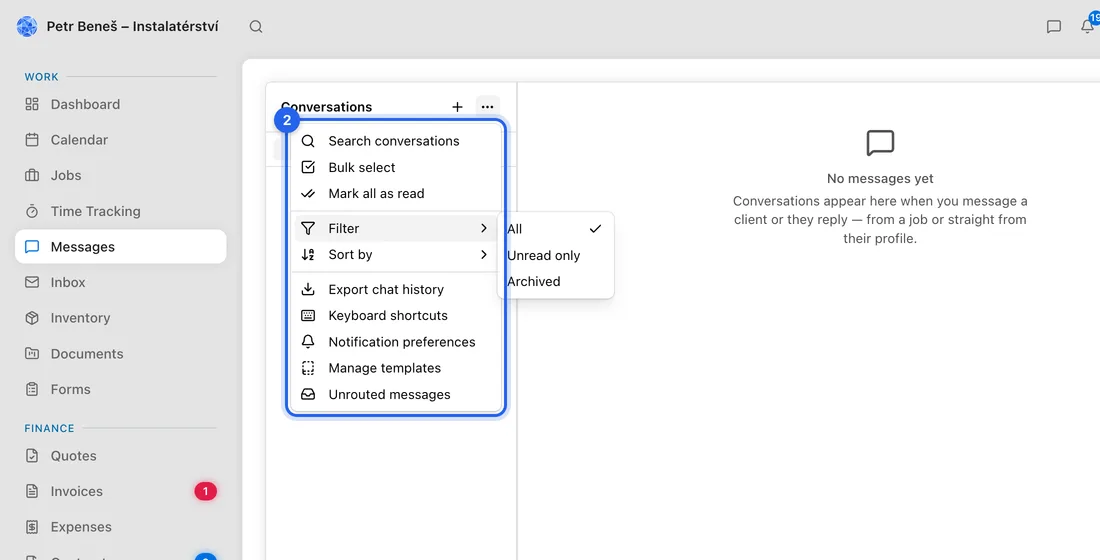
- 3Right-click the conversation and choose Unarchive to put it back. Choose Filter → All to return to the normal list.
An archived conversation stays in Archived even if the client writes again, so unarchive it if you're expecting a reply.
Tidy several at once
- 1Click the ⋯ button at the top of the conversation list and choose Bulk select.
- 2Tick the conversations you want.
- 3Use the bar that appears: Read, Unread, Mute, Archive or Delete. Click Exit bulk select when you're done.
Mark all as read in the same ⋯ menu clears every unread dot in one go. With a conversation open, you can also press E to archive, M to mute, U to mark unread, P to pin, and J or K to move down or up the list.
If something doesn't work
Deleted a conversation by mistake: click Undo in the message that appears, or restore it later from Settings → Deleted Items.
“No conversations yet”: a conversation appears once you message a client or they reply.
WhatsApp from a number that isn't saved on any client goes to Unrouted messages (in the ⋯ menu, if you can see all clients) rather than a client's conversation. You can read it and dismiss it there, but not move it into a conversation. Add the number to the right client so their next message lands in their conversation.