Keep a mileage log
Set your rate per kilometre, then log trips by hand or turn completed jobs into trips in a few clicks.
The mileage log (kniha jízd) records each business trip: date, from, to, distance, purpose and the rate per kilometre, and works out what each trip is worth.
It's a record only. The totals are not added to your expenses, your books or your tax return, because a per-kilometre rate and real fuel receipts are alternatives. Enter whichever one you actually claim as an expense, and check the treatment with your accountant.
Before you start
Available on Solo and up.
To import trips from jobs, your business address has to be filled in under Settings → Business (distances are measured from it), and the jobs need an address too.
Set your rate per kilometre
- 1Click Accounting in the left sidebar. Under Assets & Payroll, click Mileage.
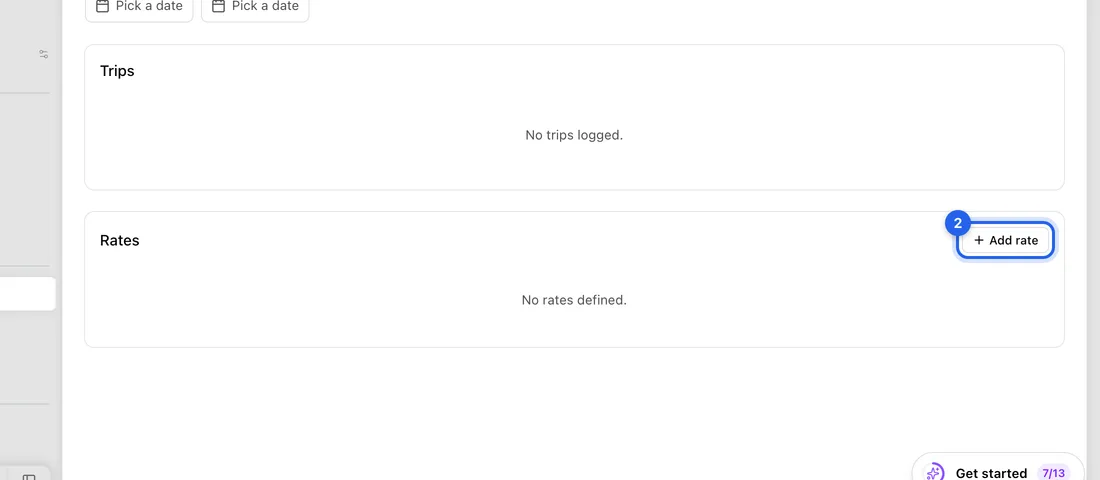
- 2In the Rates box at the bottom, click Add rate.
- 3Set Effective from to the first day the rate applies, e.g. 1 January.
- 4Type your Rate / km, e.g. 5.80. The app has no official rates built in, so take the figure from the current MPSV decree or from your accountant.
- 5Optionally pick a Fuel type and add Notes, e.g. where the rate comes from.
- 6Click Add rate. You'll see “Rate added”. When the rate changes, add a new one with a new Effective from date rather than editing the old one.
Turn completed jobs into trips
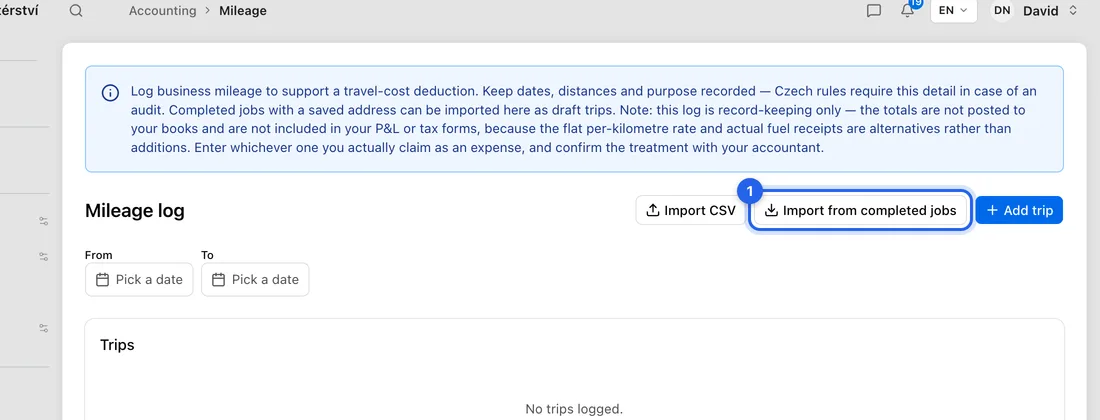
- 1On the Mileage log page, click Import from completed jobs. A number on the button shows how many jobs are waiting.
- 2Tick the jobs you drove to, or click Select all. Each row shows the job, its address, when it was completed and the distance in km.
- 3If you drove there and back, switch on Count as return trip (× 2).
- 4Click Import, e.g. Import 3 trips. You'll see “Imported 3 trips” and the trips appear under Trips, priced at your latest rate.
Distances are road distances from your business address when the routing service is available. If it isn't, the app quietly uses the straight-line distance instead, which is shorter than the road, so check the km before you rely on them.
Add a trip by hand
- 1On the Mileage log page, click Add trip.
- 2Fill in Date and, if you like, Vehicle reg.
- 3Type From and To addresses.
- 4Type the Distance (km) one way, and switch on Return trip if you came back. Leave Rate / km empty to use your latest rate. Total: shows what the trip is worth.
- 5Write the Purpose, e.g. “Boiler service, Novák”.
- 6Click Add trip. You'll see “Trip added”.
Let finished jobs add themselves
Go to Settings → Accounting → Regime & method. Under Mileage, switch on Auto-create mileage entries on job completion and click Save settings. Each job you mark completed then adds a trip you can check on the Mileage log page.
Don't claim mileage? Switch off Show mileage import notifications in the same place to hide the reminders.
If something doesn't work
“No mileage rate configured. Add one in the Rates section first.”: add a rate (see above) and import again.
“Business address coordinates are missing…”: fill in your business address under Settings → Business and save.
“Nothing to import right now.”: no completed job with an address is waiting, or your business address isn't set yet. Jobs already imported don't show again.
Add trip stays greyed out: Distance (km) is empty.