Change the details on a single invoice
On one invoice you can pick a different bank account, change the contact details the client sees, switch the language, and choose whether the client is asked to sign. Your defaults stay as they are.
Every invoice starts from your settings. On the invoice you're editing you can change four things for that invoice only: the bank account it's paid into, the contact details the client sees, its language, and whether the client is asked to sign it.
Your business name, IČO and DIČ always come from your profile and can't be changed per invoice.
Before you start
This works on every plan.
The bank account choice only appears when you have two or more accounts shown on invoices. Add them in Settings → Business first (see Add your bank details so clients can pay you).
Change them on the invoice
- 1Click Invoices in the left sidebar, then New Invoice. For an existing invoice, open it, click the ⋯ button at the top and choose Edit.
- 2Bank account: under Bank Details & QR Code, open Bank account and pick the account. Your default is marked “· default”.
- 3Contact details: under Contact Details, change Contact email, Contact phone or Website. The client sees these and replies to them.
- 4Language: under Additional Details, next to Invoice Language, click Česky or English.
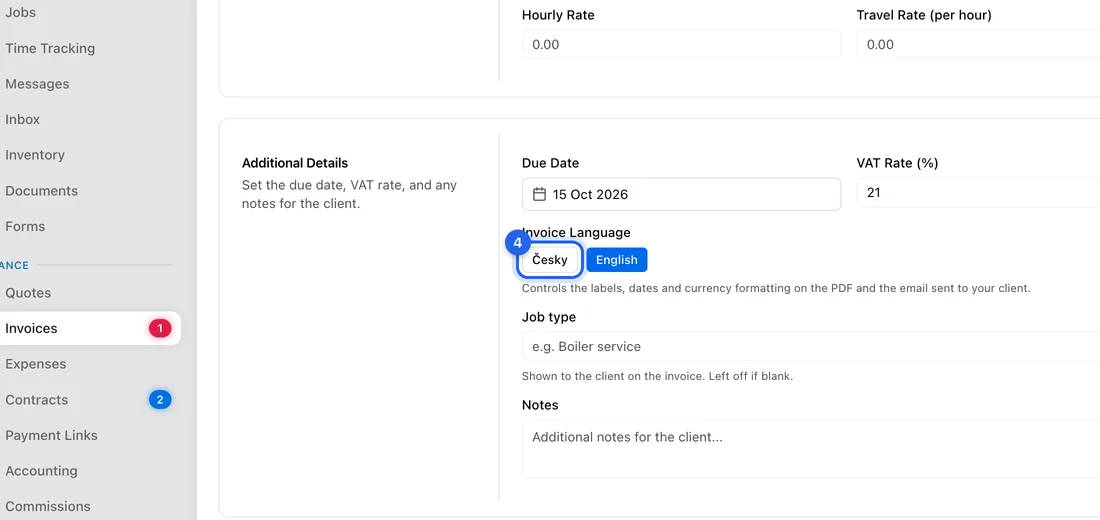
- 5Client's signature: in the Summary, tick or untick Ask the client to sign this invoice.
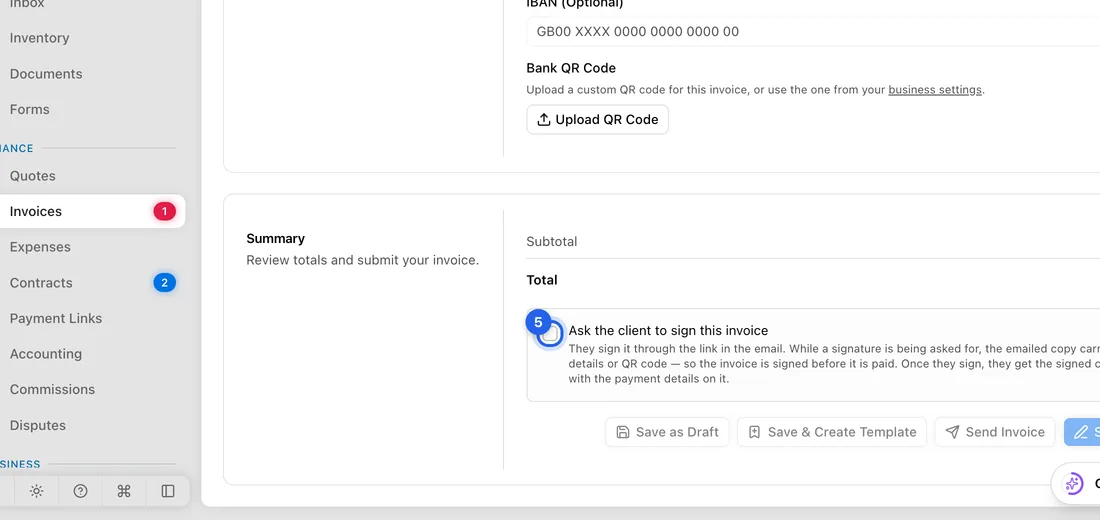
- 6Click Send Invoice or Save as Draft. When editing, click Save Changes.
Change the default instead
If you find yourself changing the same thing every time, change the default:
Your default bank account and contact details are in Settings → Business.
A client who always wants English (or Czech): open the client from Clients, click the ⋯ button and choose Edit details. Under Preferences, set Default invoice language, then click Save Changes. New invoices for that client then start in that language.
Asking clients to sign: Settings → Invoicing → Client E-signature → Ask clients to e-sign invoices. When it's off, the Signed column is hidden from your invoices board.
What happens next
Only this invoice changes. For example, with English chosen for a German client, the PDF and the email they receive have English labels and English date and currency formatting, while your other invoices stay in Czech.
If you ask the client to sign, the emailed copy has no bank details or QR code until they've signed. Once they sign, they get the signed copy back with the payment details on it.
If something doesn't work
There's no Bank account dropdown: you have only one account shown on invoices. The invoice uses it automatically.
Edit isn't in the ⋯ menu: the invoice is paid or cancelled, and those can't be changed.
Edit details isn't on the client's page: that client has their own JobMistr account, so their details are theirs to change. Pick the language on each invoice instead.