Set up your public profile and marketplace listing
Get your public profile page ready, preview it, and choose whether you're listed in the marketplace.
Your public profile is a page about your business that clients can see. Until the JobMistr marketplace opens, only you can see it: you can prepare and preview it now, and it goes live on its own when the marketplace opens.
Before you start
Your profile page gets its web address from your business name. Fill in your business name in Settings → Business → Business Details and save, and the address is created for you. It's on every plan.
Set up your profile
- 1Open Settings from the left sidebar, then choose Business (or open your account menu at the top right and choose Business settings).
- 2Check that Business Name under Business Details is filled in. If you change it, click Save changes at the bottom right.
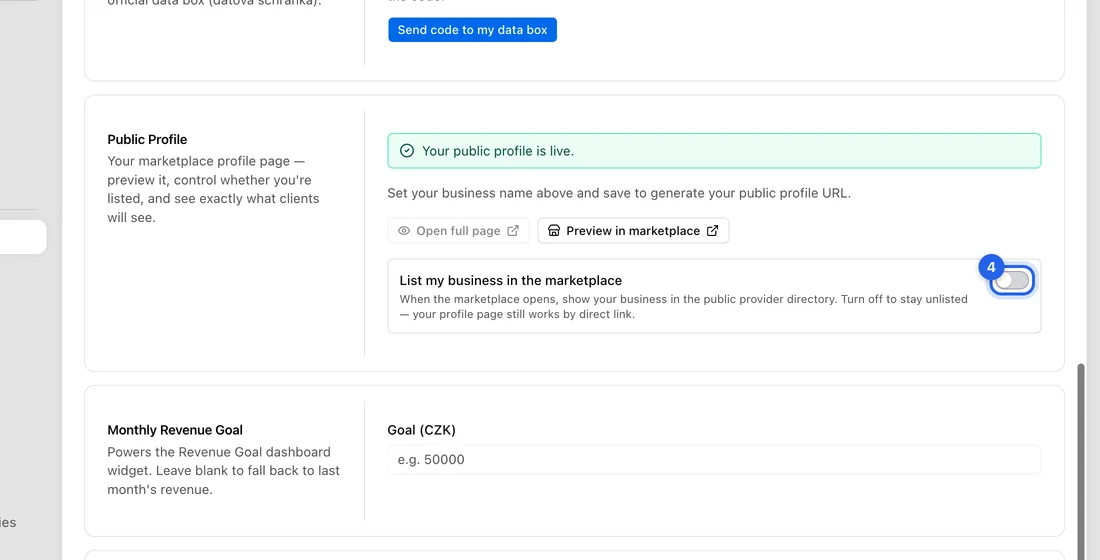
- 3Scroll down to Public Profile. The grey box at the top tells you where your profile stands.
- 4Turn List my business in the marketplace on or off. It saves as soon as you flip it, and you'll see “Listed in the marketplace” or “Hidden from the marketplace”.
- 5If you have a business address saved, you'll also see Show my address on my profile. Leave it off if you work from home.
- 6Click Open full page to see your profile in a new tab, or Preview in marketplace to see how you'll look in the directory.
What happens next
While the marketplace is closed, the box says “Preview only — your profile goes live automatically when the marketplace opens.” Your profile link only works for you (and your team) while you're signed in. Anyone else gets a “page not found”, so don't share it yet.
Once the marketplace opens, the box changes to “Your public profile is live.” If you're listed, clients can find you in the directory. If you're not listed, you won't appear there, but your profile link still works for anyone you send it to.
With Show my address on my profile off, your profile still shows your city, postcode and service area, just not the street.
If something doesn't work
“Set your business name above and save to generate your public profile URL.”: you haven't saved a business name yet. Add one under Business Details and save.
“Your URL is awaiting admin review.”: the web address made from your business name looks too much like a protected brand name, so our team checks it first. Open full page stays greyed out until it's approved.
No Show my address on my profile switch: you haven't saved a business address yet.
“Couldn't update — try again”: the switch didn't save. Try it again.