Find anything with search (Cmd+K or Ctrl+K)
Press Cmd+K or Ctrl+K, or click the magnifying glass at the top, to find clients, jobs, invoices, pages and settings.
One search box looks through your clients, jobs, quotes, invoices, contracts, payment links, expenses, calendar, stock, catalogue and campaigns, as well as the app's own pages and settings sections.
Open search
- 1Press Cmd+K on a Mac or Ctrl+K on Windows, from any screen. The Search page opens with the cursor already in the box.
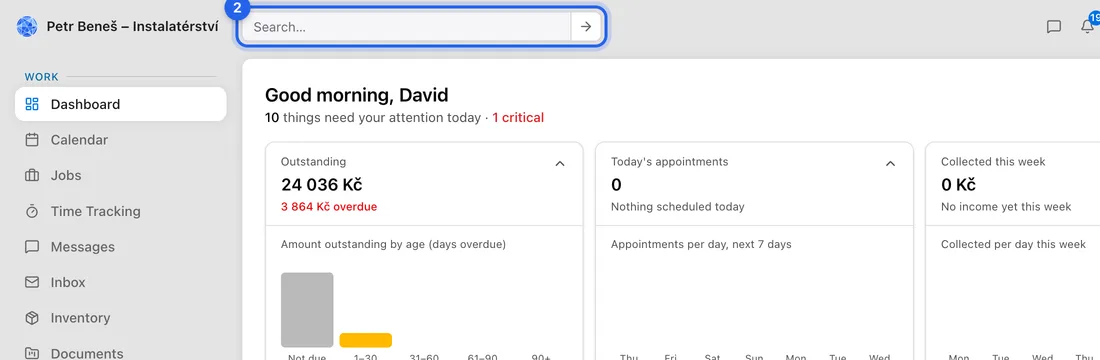
- 2Or click the magnifying glass at the top of the screen, next to the page name (on a phone it's at the top right). A small box opens with Search…. Type what you're looking for and press Enter, or click the arrow, to go to the Search page.
Find what you need
What to type: a client's name, email, phone or city; an invoice or quote number; the title of a job, contract or calendar entry; a stock item's name or number; a payment link's description or variable symbol.
Typing a client's name also brings up their invoices, jobs, quotes, contracts, payment links and calendar entries, so it's usually the quickest way to find something for one client.
- 1Type in the box "Search across jobs, invoices, clients, settings…". Pages and settings show up from the first letter; your own records show up once you've typed two letters.
- 2Look through the groups: Pages & Settings, Clients, Jobs, Quotes, Invoices, Contracts, Payment Links, Expenses, Calendar, Inventory, Catalogue, Campaigns and Support. Each group shows up to five matches.
- 3Click a result to open it. To start again, click the × at the end of the box.
With the box empty, the page lists the last five things you opened from search under Recent. They're remembered in this browser only.
If you can't find something
No results found: check the spelling, or try a shorter part of the name or number.
Invoices and quotes are found by their number or their client, not by what's written on them. Expenses are found by their category, not by the description you typed. Job descriptions and notes aren't searched.
Pages and settings are matched on their English names, so words like "invoice", "calendar" or "vacation" work best there.
If you're a team member, search only shows what your role lets you see. Something that's missing from your jobs or invoices list won't appear in search either.