Set up repeating appointments
Create a standing appointment for a client from Calendar → Recurring, or let clients book a repeating service themselves from your shop.
A repeating appointment puts the same visit in your calendar on a schedule, e.g. every Tuesday at 09:00 for a weekly clean. You can set one up yourself for a client, or let clients set one up from your shop.
Before you start
Repeating appointments are available on Solo and up.
Each schedule is for one of your services, so add the service first in Services & Products (click New product and choose Service). To bill from a session package, the client must already have an active package.
Set one up for a client
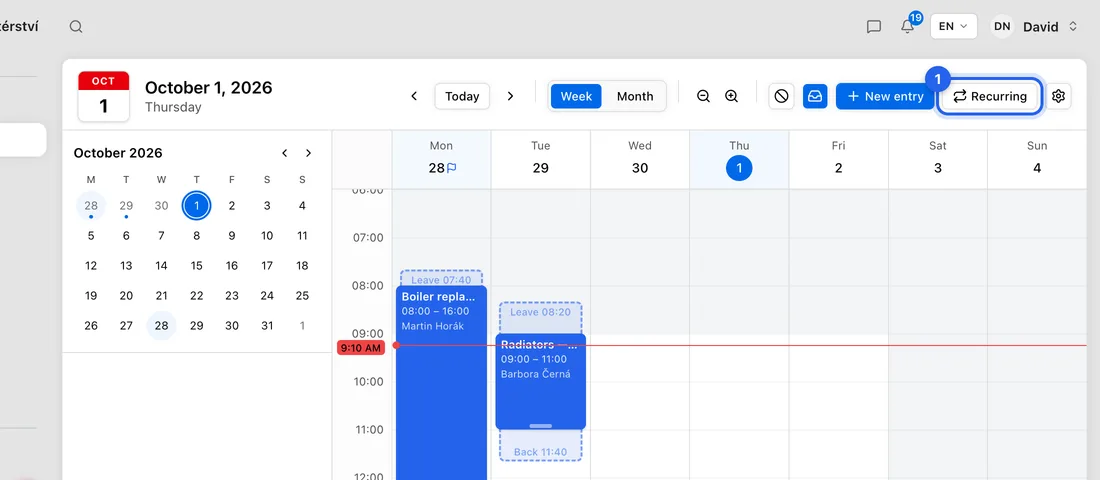
- 1Open Calendar and click Recurring at the top right.
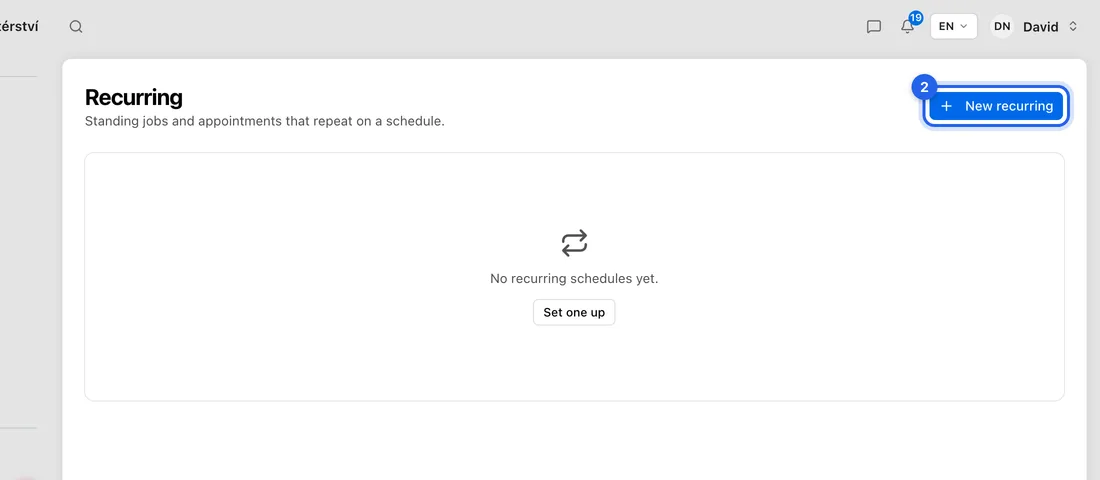
- 2Click New recurring.
- 3Pick the Client and the Service, and type a Title, e.g. Weekly clean.
- 4Under Repeats choose Weekly, Monthly or Daily, and under On pick the day (for Weekly, e.g. Tuesday).
- 5Set the Time, e.g. 09:00, how many Minutes it lasts, e.g. 120, and the date it Starts.
- 6Under Billing, choose Invoice each session, Batch into one monthly invoice, Draw from a session package, or Bill manually. Enter the Price per session if asked.
- 7Click Create. You'll see “Recurring schedule created” and the schedule's page opens.
Let clients book a repeating service
- 1Open Services & Products, click the ⋯ on a service and choose Edit (or click New product and choose Service).
- 2Under Sell on the Shop, turn the switch on, then turn on the second switch so it reads Recurring service (a standing, repeating booking).
- 3Choose how often it Repeats: Weekly, Fortnightly or Monthly, and enter the Price per visit.
- 4Under How you get paid, pick one of the options. Options that take payment up front need card payments connected.
- 5Click Save. On your shop, clients pick this service, choose the first day and time, and click Set up standing booking. It's set up straight away, with no approval step.
What happens next
The visits appear in your calendar straight away, up to two years ahead (daily ones 60 days ahead), and more are added as time passes.
Visits are left out on your time off and, if you don't work them, on public holidays. If a visit would clash with something already in your calendar, it's skipped and you're told, so you're never double-booked.
Open a schedule from Calendar → Recurring to see its Occurrences (Upcoming, Unbilled, Invoiced, Cancelled). Use Pause or Resume to stop and restart it, and Settle now to create the invoices that are due. Delete removes upcoming visits that haven't been billed; past visits stay.
If something doesn't work
There's no Recurring button in the calendar: your plan doesn't include repeating appointments (it isn't on Free).
“Create a service template first (Settings → Services).”: you have no services yet. Despite what it says, add them in Services & Products, not in Settings.
“This client has no active package.”: sell the client a package first, or choose a different Billing option.
A week is missing from the calendar: that day was time off, a public holiday you don't work, or it clashed with another entry.