Set up a recurring invoice
Make an invoice as usual, switch Make Recurring to Recurring and pick how often. The app then creates a new copy on schedule. Manage them under Invoices → Recurring.
For work you bill the same way every week, month or year. You make the invoice once and mark it recurring. The app then creates a copy on schedule, each with its own invoice number, and either emails it or leaves it as a draft for you to check.
Before you start
Recurring invoices are on Solo and up. On Free, the Make Recurring section is on the form, but an invoice set to Recurring won't save.
If the copies are to be emailed automatically, your client needs an email address saved.
Set it up
- 1Click Invoices in the left sidebar, then New Invoice.
- 2Pick the client and add the lines, as for any invoice.
- 3Scroll down to Make Recurring and click Recurring.
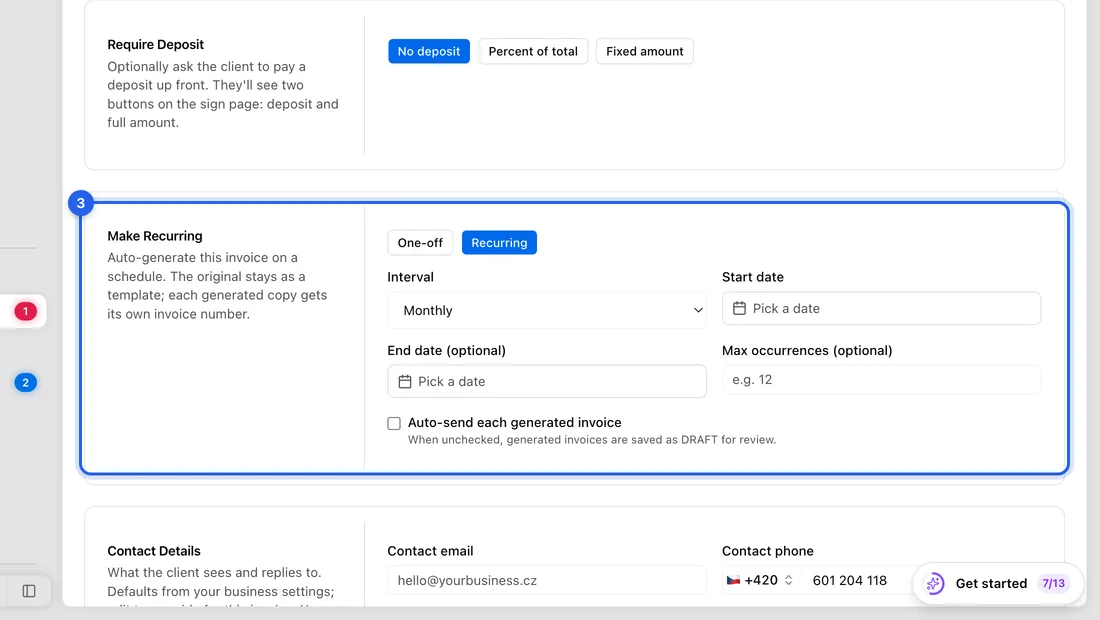
- 4Under Interval, choose Daily, Weekly, Monthly, Quarterly or Yearly.
- 5Set Start date to the day the first copy should be made. If you leave it empty, the first copy is made on this invoice's due date.
- 6To stop on its own, fill in End date (optional) or Max occurrences (optional). Leave both empty to keep going until you pause it.
- 7Tick Auto-send each generated invoice to have each copy emailed. Leave it unticked and each copy is saved as a draft for you to check and send.
- 8Click Send Invoice to send this first invoice now, or Save as Draft.
Pause, change or stop it
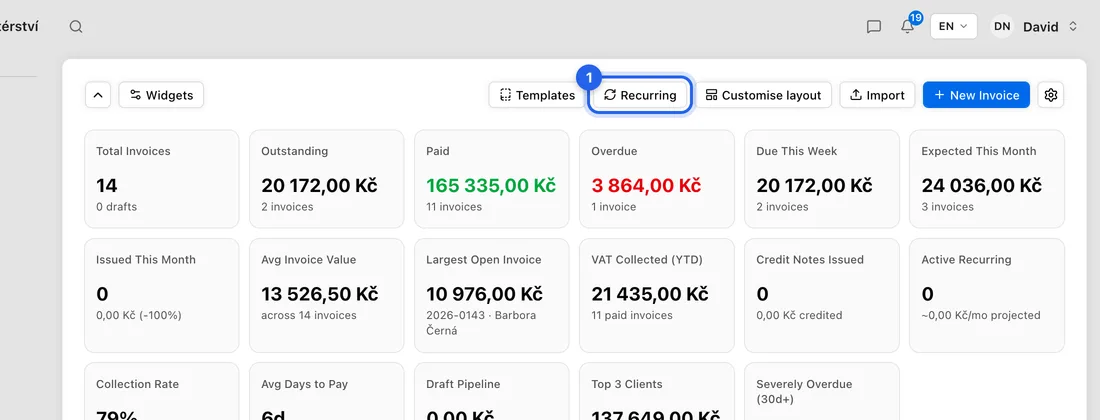
- 1On Invoices, click Recurring at the top of the page. The Recurring invoices page lists each series with its Interval, Next run, Occurrences and Status.
- 2Click Pause to stop new copies. Click Resume to start again.
- 3Click Edit to change the lines, price or schedule. Copies made from then on follow the change; invoices already made stay as they are.
What happens next
For example: you send October's 4 000 Kč maintenance invoice today, set Monthly, Start date 1 November and Max occurrences 3. Copies are made on 1 November, 1 December and 1 January, three more invoices of 4 000 Kč each. The series then shows as Paused.
Each copy is dated the day it's made and is due after your default due days (Settings → Business). Copies are made once a day.
Auto-sent copies go out like any sent invoice, and payment reminders follow the usual schedule.
If something doesn't work
The invoice won't save with Recurring chosen: your plan doesn't include recurring invoices. They're on Solo and up.
“No recurring invoices yet”: nothing has been set to Recurring. Open an invoice, click Edit and switch Make Recurring to Recurring.
A copy stayed as a draft although Auto-send is ticked: its VAT doesn't match your VAT registration on that date. Open the copy: a message at the top explains it and offers the fix.
No new copies: check the Status on the Recurring invoices page. Paused means you paused it, or it reached its End date or Max occurrences.