Use, hide and reopen the getting-started checklist
The Get started checklist sits in the bottom-right corner. Hide it when you're done, and bring it back from your account menu.
The Get started checklist walks you through setting up your business (profile, tax status, how you get paid) and your first real work (first client, quote and invoice). It lives in the bottom-right corner of the screen, and the account owner is the only one who sees it.
Work through the checklist
- 1Click Get started in the bottom-right corner. The button shows how many steps you've done, for example 3/12.
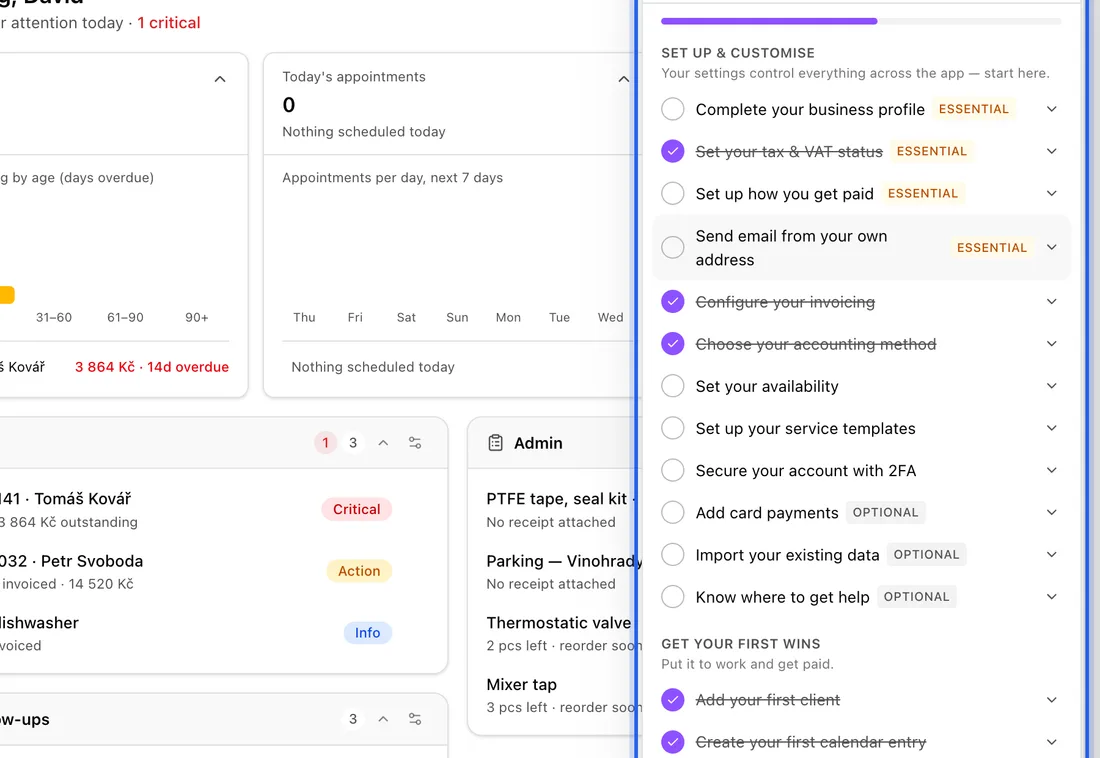
- 2Click a step to read what it's for, then click its button to go straight to the right page.
- 3Steps tick themselves off when the thing is done, or as soon as you open the page for steps that are just about checking a setting. To tick one off yourself, click the circle next to it (Mark as done).
- 4Click the down arrow at the top of the panel to shrink it back to the button.
Steps marked Essential are the ones to do first. Steps marked Optional don't count towards your progress.
Hide the checklist
- 1Open the panel and click ⋯ (Checklist options) at the top.
- 2Choose Hide checklist. You'll see "Checklist hidden — reopen it any time from your profile menu."
Bring it back
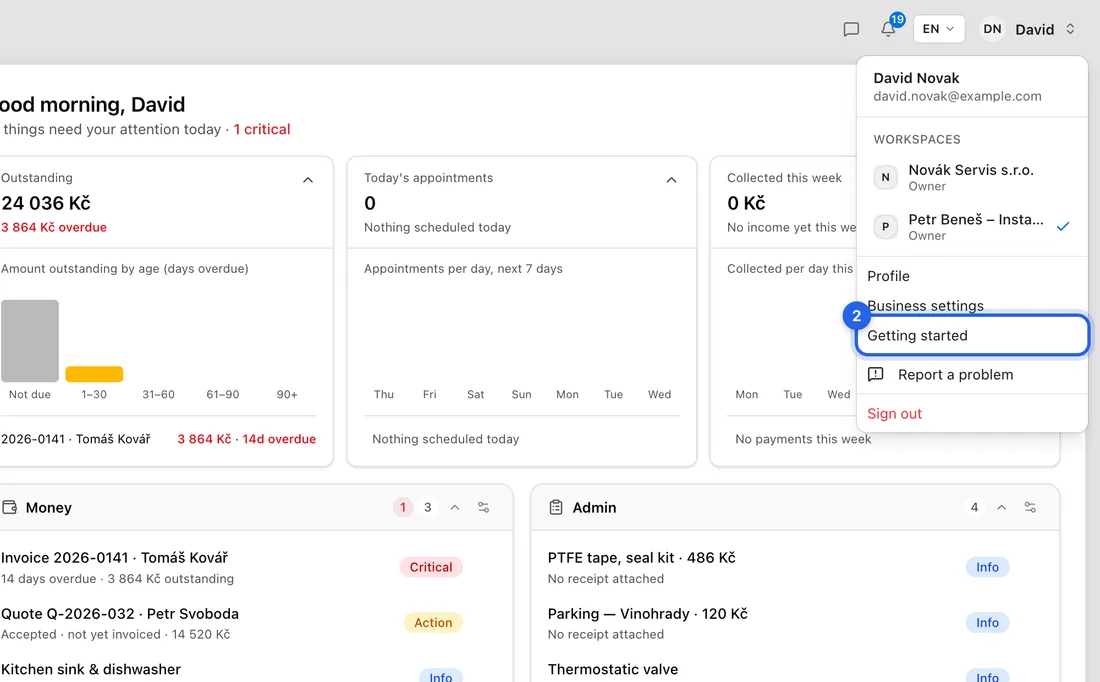
- 1Click your picture or initials in the top-right corner to open your account menu.
- 2Choose Getting started. The checklist opens in the bottom-right corner, with your ticks where you left them.
If it doesn't appear
Only the workspace owner has the checklist. If you joined someone else's business as a team member, you won't see it, even from the account menu.
The checklist doesn't show while you're viewing the app as a client, and Getting started isn't in the menu then either.
Until you hide it, the panel opens by itself once per browser session while steps are left. When everything's done it says You're all set, and you can still open it to revisit any step.