Get a nudge before you run out
Set a Reorder ≤ level for each location on an item, and your dashboard flags it when stock drops to that level.
A reorder level is the count at which you want to buy more, e.g. 10 rolls of tape. When a location drops to it, the item is flagged on your Dashboard, so you notice before you're caught short. Inventory is on every plan.
Before you start
The item needs Track Stock switched on (it says “Tracked in stock”). Frequent items that aren't stocked have no counts and never flag.
Set the reorder level
- 1Open Inventory from the left sidebar and click the item. The Edit Item page opens.
- 2Scroll to Stock. Each of your locations has its own row with the count on hand.
- 3In that location's Reorder ≤ box, type the level, e.g. 10.
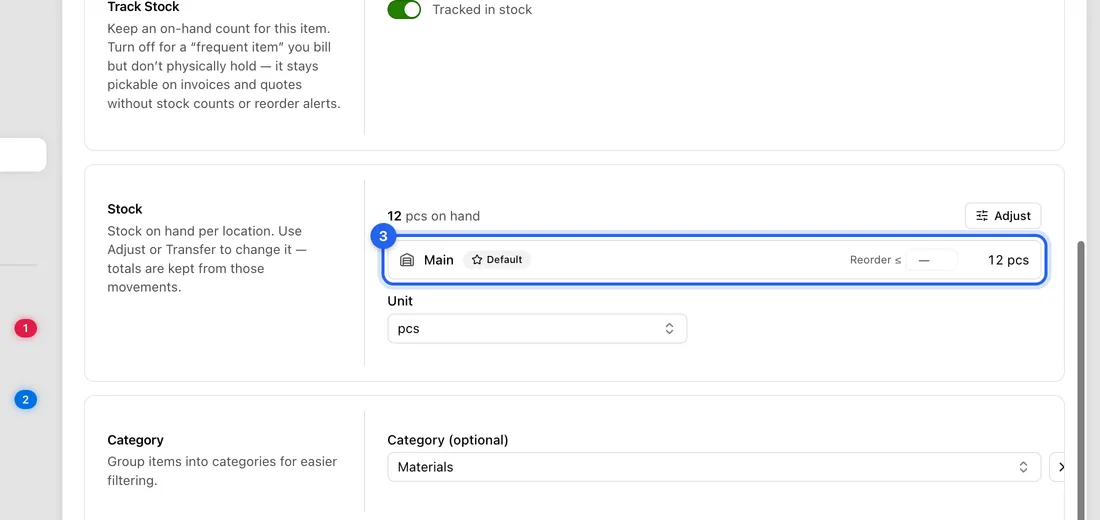
- 4Click anywhere outside the box. It saves on its own; there's no Save button to press.
- 5Repeat for any other location. The van and the warehouse can have different levels.
To remove a level, clear the box and click outside it.
What happens next
On the item's page, a location at or below its level shows a Low badge.
On your Dashboard, the Admin card lists it as “Low stock to reorder”, e.g. “3 pcs left · reorder soon”. If another of your locations has spare, it suggests moving it instead, e.g. “Van low (2 pcs) · move 8 from Warehouse”, with a button that makes the transfer for you after you confirm.
You can also add the Low Stock Alert widget to your Dashboard (Add widget under Your widgets) for a list of everything that's low.
A location with no level of its own is flagged once it's down to 5.
If something doesn't work
The Low Stock figure at the top of the Inventory page doesn't match your dashboard: that figure simply counts items with fewer than 10 in total, whatever levels you've set. Go by the dashboard and the Low badges.
An item never flags: check Track Stock is on, and that you clicked out of the Reorder ≤ box so it saved. If you see “Couldn't save reorder point”, try again.
Nothing shows on the Dashboard: the low-stock alert may be switched off. Use the gear on the Admin card, or ⋯ → Show all hidden.