Set up your services and prices
Tell the app what kinds of work you do in Settings → Services, then add each service with its length and price under Services & Products.
Your services live under Services & Products in the left sidebar. Each one is a bookable piece of work with a length and a price, e.g. “1-hour boiler service, 1 500 Kč”. You can also add packages, a block of sessions sold at one price.
It takes two stops: first Settings → Services, where you say what kinds of work you do, then Services & Products, where you add the actual services and prices.
Before you start: choose your kinds of work
Every service has to belong to one of your service types. If you picked some when you signed up, they're already there and you can skip this.
- 1Open Settings from the left sidebar and choose Services.
- 2Under Service Categories, start typing in Service type (e.g. Plumbing) and pick a suggestion from the list.
- 3In Sub-categories, pick the specific jobs you do (e.g. Boiler repair). Click Add another service type for another trade.
- 4Click Save changes at the bottom right. You'll see “Services updated successfully”.
Pick from the suggestions where you can. Anything you type that isn't on our list is marked Pending and checked by our team, usually within a day. You can't use it for a service until it's approved.
Add a service
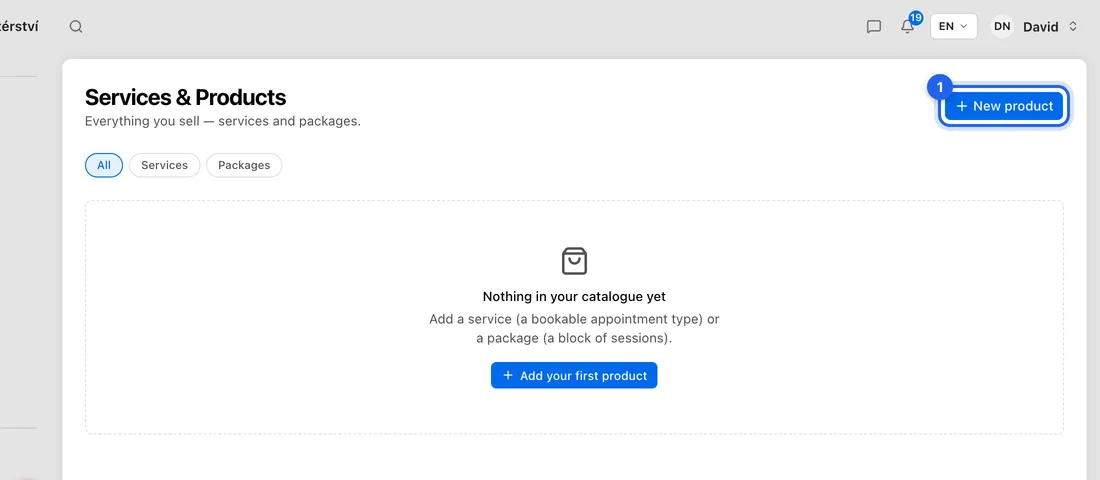
- 1Click Services & Products in the left sidebar, then New product (top right).
- 2Under Type, choose Service.
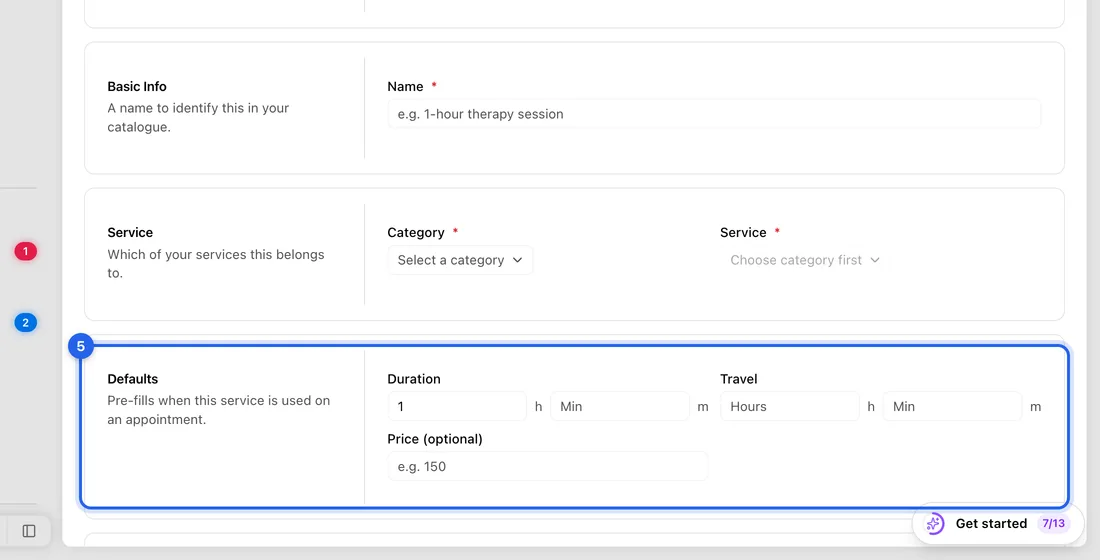
- 3Under Basic Info, type a Name, e.g. 1-hour boiler service.
- 4Under Service, choose the Category, then the Service it belongs to. These lists show only what you added in Settings → Services.
- 5Under Defaults, set Duration (hours and minutes), Travel if you charge for travel, and Price (optional).
- 6Leave the rest as it is for now. Pick a Colour if you want its appointments to stand out on the calendar.
- 7Click Create. You'll see “Created” and the service appears as a card on Services & Products.
Add a package
- 1Click New product and, under Type, choose Package.
- 2Fill in Name, Category and Service as above.
- 3Under Package, enter Sessions (how many) and Package price (for the whole block).
- 4Click Create. The package card has a Sell to client button for when a client buys one.
Where your services are used
New job: in the Service section of a new job, click Load from template to fill the job in from one of your services.
Booking page: the service's price is shown to people booking, and is what a booking deposit is worked out from.
Your shop: turn on Sell on the Shop in a service to list it on your public shop page.
Services & Products does not feed invoice or quote lines. On an invoice, add lines by hand or with Add from Inventory.
If something doesn't work
The Category list is empty: you haven't added any kinds of work yet, or only custom ones that are still Pending. Add one from the suggestions in Settings → Services and save.
“Service is required” or “Name is required”: fill in the field it names and click Create again.
“Set a price before selling this on the shop”: a service listed on the shop needs a price.
“Connect a payment gateway to offer Buy now”: Buy now takes the money online, so it needs a card gateway. See Take card payments.
Deleted a service by mistake? Click Undo in the message that appears, or restore it later from Settings → Deleted Items.