How your stock count looks after itself
A delivered purchase order adds stock; a completed job or an issued invoice takes it away. Here's how to set each one up.
Once your items are in Inventory, you rarely need to change the counts by hand. Stock goes up when a purchase order is delivered and down when you finish a job or issue an invoice that uses it. Inventory is on every plan (Free holds up to 25 items).
Before you start: add the item with Track Stock on
- 1Open Inventory from the left sidebar and click Add Item (top right). The Add Inventory Item page opens.
- 2Type the Item Name and, under Pricing, the Retail Price (what you pay) and Sell Price (what you charge).
- 3Leave Track Stock on. It says “Tracked in stock”.
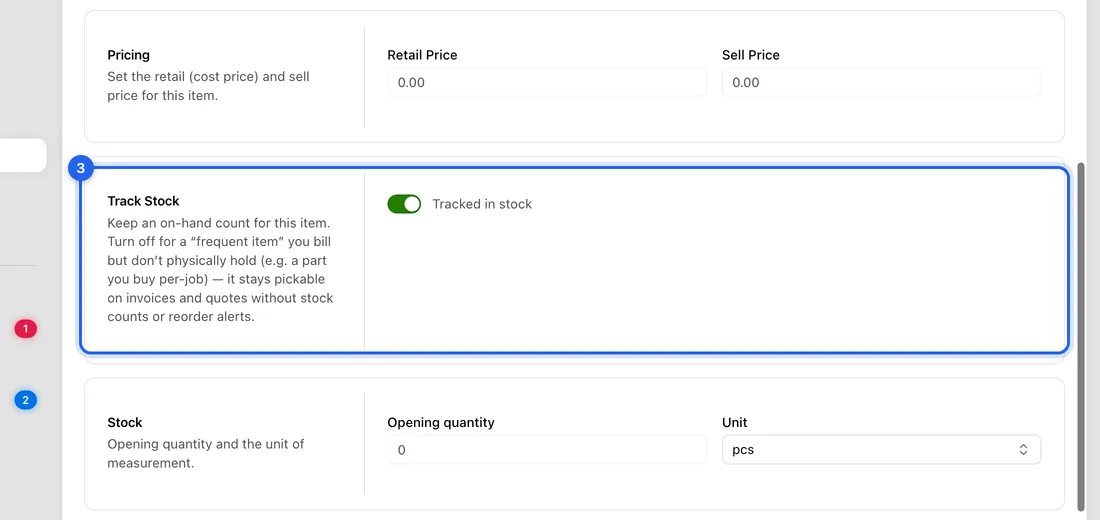
- 4Under Stock, enter the Opening quantity you have now and, if you have more than one location, where it's Stored at.
- 5Click Add Item at the bottom. You'll see “Item added”.
Turn Track Stock off for a Frequent item (not stocked): something you bill but buy per job. It can still go on invoices and quotes, but it never changes a count.
Stock comes in: mark a purchase order delivered
- 1Open Expenses and click New Purchase Order.
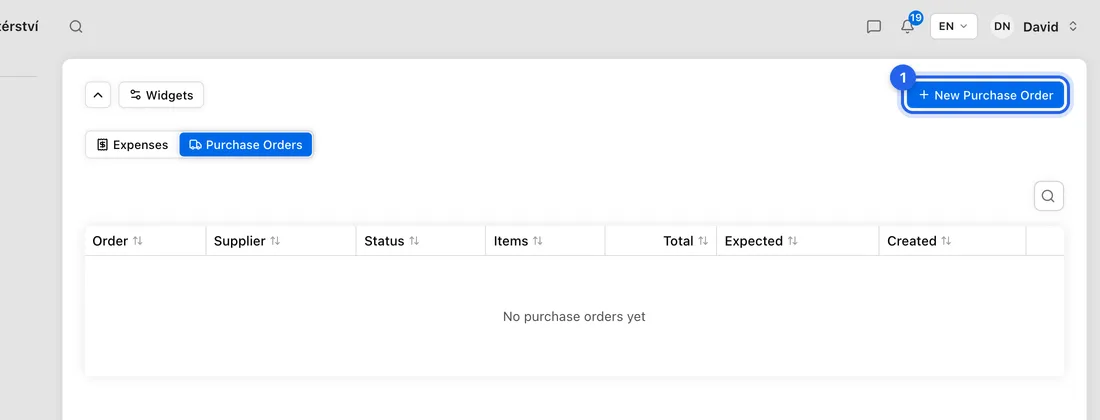
- 2Pick the Supplier. Under Line Items, click Add Item and, for each line, choose the Inventory Item (optional) you're buying, then the Quantity and Unit Price.
- 3Click Create Purchase Order. You'll see “Purchase order created”.
- 4When the goods arrive, open the order (Expenses → Purchase Orders tab) and click Mark as Delivered.
- 5If you have more than one location, choose the Destination location under “Receive delivery into…” and click Receive stock. You'll see “Order marked as delivered. Inventory updated.”
Only lines linked to an inventory item change your stock. Lines you typed without one are just for the paperwork. The whole order is received at once, into one location.
Stock goes out: finish the job or issue the invoice
On a job: in Materials & Parts, click Add from Inventory and pick the items you used. If you keep stock in several places, choose where each came From. The count drops when the job is marked Completed. If you move the job back out of Completed (e.g. to In progress or Cancelled), the stock is put back.
On an invoice without a job: click Add from Inventory on the invoice. The count drops when the invoice is issued (when it stops being a draft), and goes back up if you cancel it.
On an invoice made from a job: its stocked lines are copied onto the job, and the count drops once, when the job is completed. Nothing is taken off twice.
When you bill more than you hold
Under each stocked line on an invoice you'll see “From stock — deducts on issue”. Click it to switch to “Bought-in for this job — no stock change” when you bought that item specially.
If you bill more than you have, e.g. 8 when only 5 are on hand, the line says “5 from stock · 3 bought-in (only 5 on hand)”. Only the 5 come off, so your count never goes below zero.
If something doesn't work
A delivery didn't add stock: the order line wasn't linked to an inventory item. Add the stock by hand from the item's page.
An item on an invoice didn't come off: it's a Frequent item (not stocked), the line was set to Bought-in, the invoice is still a draft, or the invoice belongs to a job that isn't completed yet.
“Add at least one line item”: a purchase order needs at least one line before you can create it.