Switch between businesses
If your login belongs to more than one business, click your name at the top right and pick the business under Workspaces.
One login can belong to several businesses: your own, a business that added you to its team, or a client's business that invited you as its bookkeeper. Each one is a separate workspace with its own clients, invoices, settings and plan. You move between them from the account menu.
Before you start
The Workspaces list only appears once you belong to at least two workspaces. With just one, the menu shows no list.
You join another business's workspace by accepting its invite (a team invite or a bookkeeper invite), signed in with the email the invite was sent to. There's no button to start a second business of your own inside the app.
Switch to another business
- 1Click your name at the top right of the screen to open the account menu.
- 2Under Workspaces, click the business you want. Under each name you see your role there: Owner, Admin, Member, Bookkeeper or Viewer. A tick marks the one you're in now.
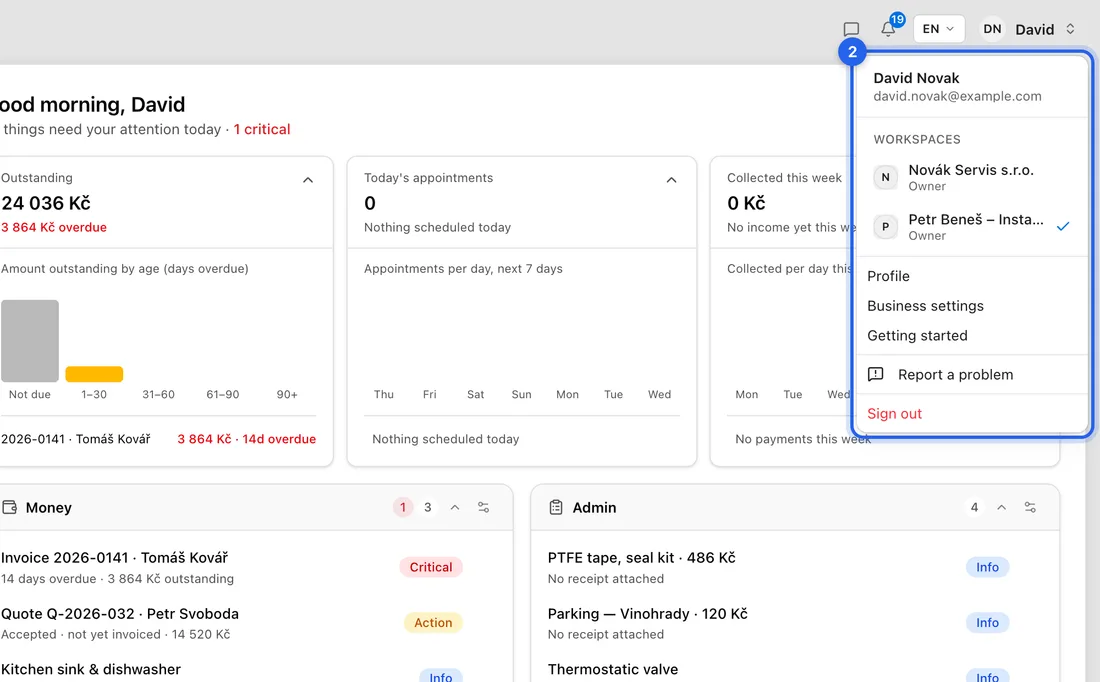
- 3Wait a moment. The app reloads and opens that business's Dashboard.
On a phone or narrow window, tap the menu button at the top left, then tap your name at the top of the menu. The same Workspaces list is there.
What changes when you switch
Everything you see now belongs to that business: its clients, jobs, invoices, settings and plan. Nothing is copied between workspaces.
What you can see and do depends on your role there. A Member or Bookkeeper only sees the areas the owner allowed.
The app stays in that business until you switch again or sign out.
If something doesn't work
No Workspaces list in the menu: you belong to only one workspace. Ask the other business to send you an invite and accept it.
“This invitation was sent to … You are signed in as …”: the invite went to a different email. Sign out and sign in with that address, then open the invite link again.
You click a business and nothing happens: your access there may have been removed. Reload the page. If the business is still listed and still won't open, ask its owner to check Settings → Team.