Take card payments
Connect Stripe, GoPay, ComGate, Revolut Business or PayPal and your clients can pay your invoices by card. Online payments switch on by themselves when the first gateway is connected.
Card payments go through a payment gateway: a service like Stripe or GoPay that takes the card and sends you the money. Once one is connected, the page your client opens from your invoice email shows a button to pay online. Bank transfer is separate and works without a gateway (see Add your bank details so clients can pay you).
Before you start
Card payments are available on Solo Pro and up. On a lower plan, the Payment Gateways section shows a Card Payments box with an upgrade button instead of the gateways.
You need your own account with one of these gateways: Stripe, GoPay, ComGate, Revolut Business or PayPal. Twisto is listed but marked “Coming soon”.
Online payment works for invoices in Czech koruna (CZK) only for now.
Connect Stripe
- 1Open Settings from the left sidebar and choose Integrations.
- 2In Payment Gateways, find Stripe and click Connect with Stripe.
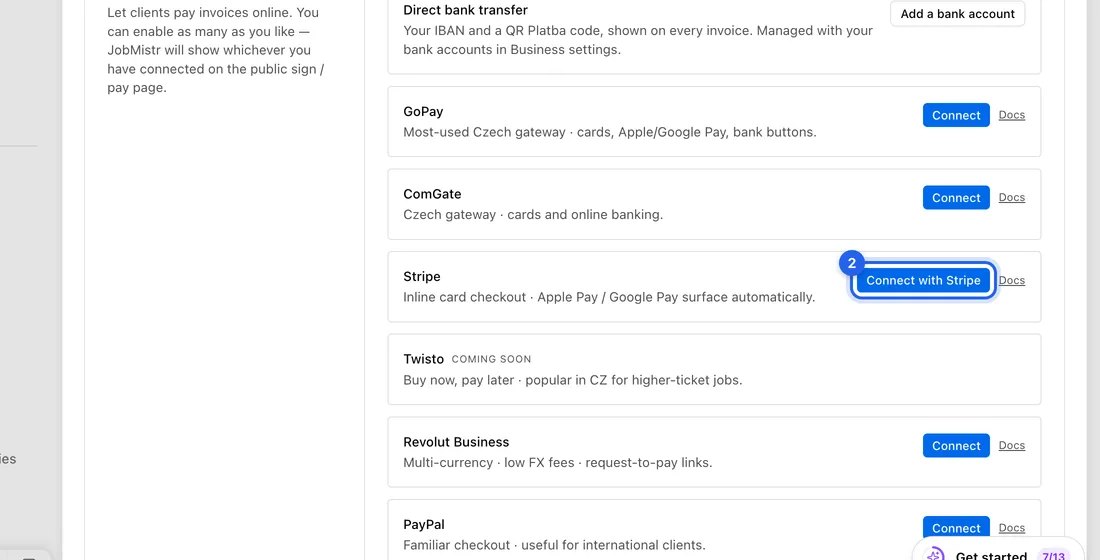
- 3Sign in to Stripe and approve the connection.
- 4You're brought back to Integrations with “Stripe connected”, and Stripe shows CONNECTED.
Connect GoPay, ComGate, Revolut Business or PayPal
- 1Go to Settings → Integrations and, in Payment Gateways, click Connect next to the gateway.
- 2Copy the keys from your gateway's own portal into the fields that open. GoPay asks for Client ID, Client secret and GoID (merchant). ComGate asks for Merchant ID and API secret. Revolut Business asks for API key (Bearer) and Webhook signing secret. PayPal asks for Client ID, Client secret and Webhook ID.
- 3Set Environment to Production (Live for PayPal) to take real payments. Sandbox is only for testing.
- 4Click Save. You'll see “… connected” and the gateway shows CONNECTED.
- 5Under the gateway you'll now see Notification URL. Click Copy and paste it into your gateway's portal, where it asks for a notification or webhook address.
Don't skip the Notification URL. Without it the gateway can't tell JobMistr a payment went through, so the invoice won't be marked paid.
Online payments switch on by themselves
- 1Once a gateway is connected, Accept online payments appears at the top of Payment Gateways, already switched on. You don't need to do anything else.
- 2To stop taking online payments without disconnecting the gateway, turn Accept online payments off. Turn it on again whenever you like.
While it's on, clients see a button to pay online on your invoices and payment links, and online bookings can take a deposit. If you switch it off, it stays off, even if you disconnect and reconnect a gateway.
What happens next
When your client opens the invoice from your email, they see “Pay this invoice online:” with a button for each gateway you've connected. Apple Pay and Google Pay appear automatically where the gateway supports them.
When the payment goes through, the gateway tells JobMistr and the invoice is marked paid on its own.
If you asked the client to sign the invoice, the payment buttons appear only after they sign it.
If something doesn't work
“Stripe connection failed: …”: the Stripe sign-in was cancelled or didn't finish. Click Connect with Stripe and try again.
“Client ID is required” (or another field name): a field is empty. Fill it in and click Save.
“Connection failed”: the gateway didn't accept the keys. Check you copied them in full and picked the right Environment.
No pay button on the invoice page: check that Accept online payments (at the top of Payment Gateways) is on, the gateway was connected with Production (Live) keys rather than Sandbox, the invoice is in CZK (only Stripe takes other currencies), something is still owed on it, and (if you asked for a signature) that the client has signed.
Clients have paid but the invoice still shows unpaid: the Notification URL isn't set in your gateway's portal. Copy it from under the gateway and paste it there.