Set your working hours
Switch on the days you work and set start and end times in Settings → Calendar, so online booking only offers times when you're working.
Your working hours say which days you work and from when to when. Your online booking page only offers times inside them, and the app warns you when you plan a job outside them.
Set your hours
- 1Open Settings from the left sidebar and, under Scheduling, choose Calendar.
- 2At the top, under Working Hours, set Default hours, e.g. 08:00 to 17:00. These are filled in whenever you switch a day on.
- 3Turn on the switch next to each day you work. Days you leave off show Day off.
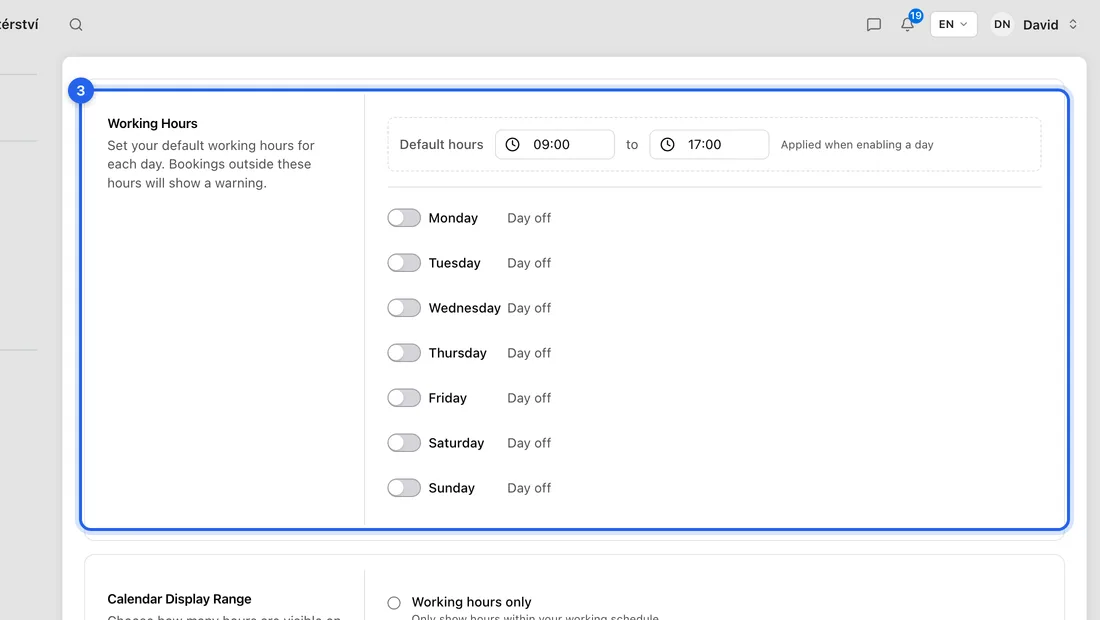
- 4To change one day, click its start or end time and pick a new one, e.g. Friday to 14:00.
- 5Click Save changes at the bottom right. You'll see “Calendar settings saved”.
Each day has one block of time. There's no way to add a lunch break yet: to keep it free from bookings, put an entry in your calendar for that time.
Public holidays
Further down the same page, under Week Settings, Work on public holidays is on by default. Turn it off if you don't work Czech public holidays: they're then greyed out in your calendar and clients can't book them. Click Save changes afterwards.
What happens next
Your booking page offers slots only on days that are switched on, between your start and end times. Times already taken by appointments in your calendar, and time off, are left out too.
When you pick a time for a new job outside your hours, you'll see “This time is outside your configured working hours.” It's only a warning: you can still save the job.
Online booking is on Solo and up. On Free these hours only drive the calendar and the warning.
Different hours for one booking page
If you run more than one booking page, each can have its own hours. Go to Settings → Bookings page, click Edit next to the page under Booking Pages, turn on Custom working hours for this page, set the hours and click Save page. Pages without it say “Uses your default working hours.”
If something doesn't work
Your booking page shows no free times on a day you work: check that the day's switch is on and saved, that Work on public holidays is on if it's a holiday, and that the booking page doesn't have its own custom hours.
You changed the hours but nothing changed: the change isn't kept until you click Save changes at the bottom right and see “Calendar settings saved”.